Custom MCP Tools
DreamFactory allows you to create custom tools that extend the capabilities of your MCP server beyond the built-in database and file operations. Custom tools let you define additional actions that AI assistants can invoke during a conversation — such as calling external APIs or running custom logic.
There are two types of custom tools: API and Function.
API Tools
API tools allow the AI assistant to make HTTP requests to external or internal endpoints. This is useful for integrating third-party services, webhooks, or any REST API into your AI workflow.
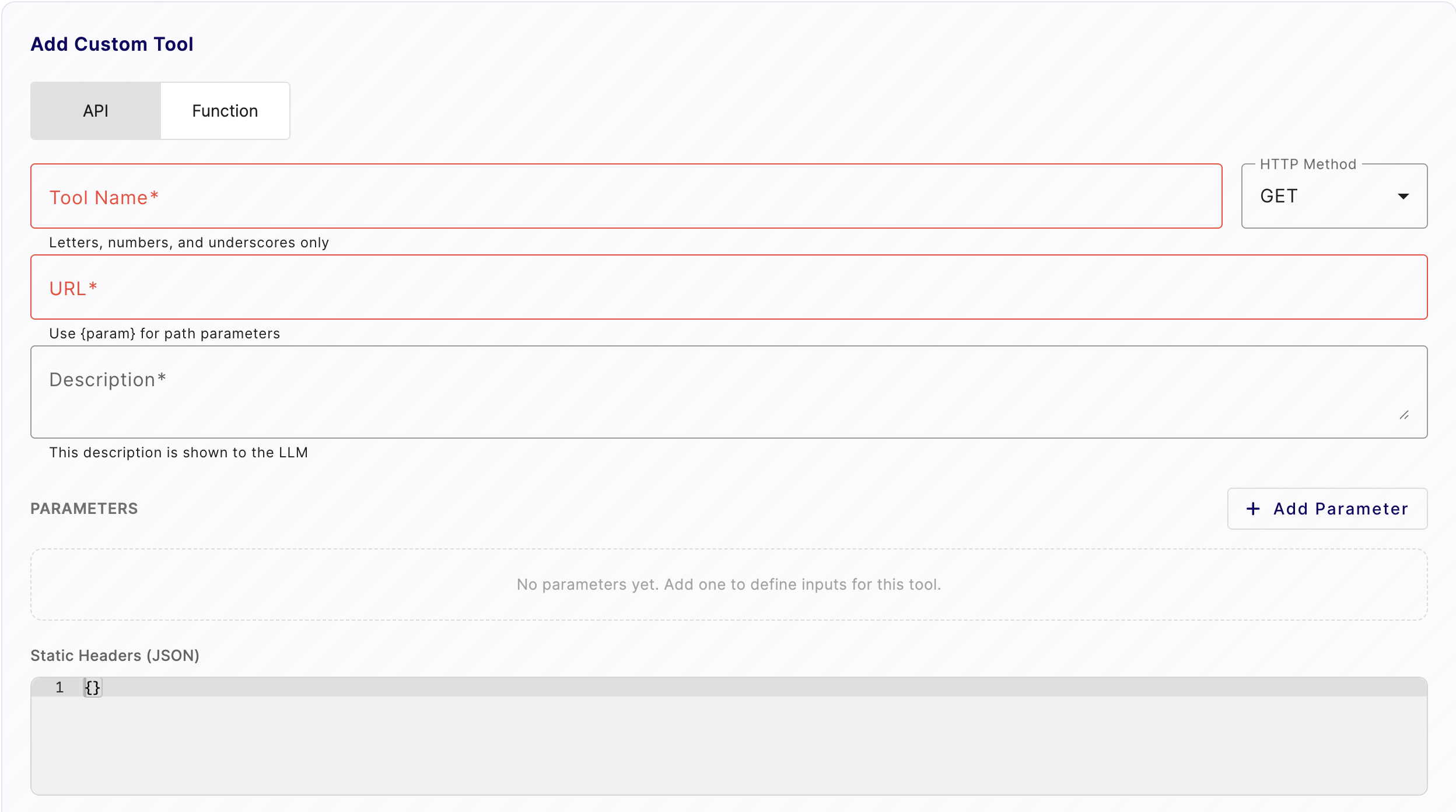
Configuration Fields
| Field | Required | Description |
|---|---|---|
| Tool Name | Yes | A unique identifier for the tool. Letters, numbers, and underscores only. |
| HTTP Method | Yes | The HTTP method to use (GET, POST, PUT, DELETE, etc.). |
| URL | Yes | The endpoint URL to call. Use {param} syntax for path parameters. |
| Description | Yes | A description of what the tool does. This description is shown to the LLM to help it decide when to use the tool. |
| Parameters | No | Input parameters that the AI assistant can pass when invoking the tool. Click + Add Parameter to define inputs. |
| Static Headers (JSON) | No | A JSON object of headers to include with every request (e.g., authorization tokens, content type). |
Example: Weather API Tool
- Tool Name:
get_weather - HTTP Method: GET
- URL:
https://api.weather.com/v1/forecast/{city} - Description: "Get the current weather forecast for a given city."
- Parameters: Add a
cityparameter of typestring.
Function Tools
Function tools let you write custom JavaScript that runs server-side when the AI assistant invokes the tool. This is ideal for data transformation, custom calculations, or any logic that doesn't require an external API call.
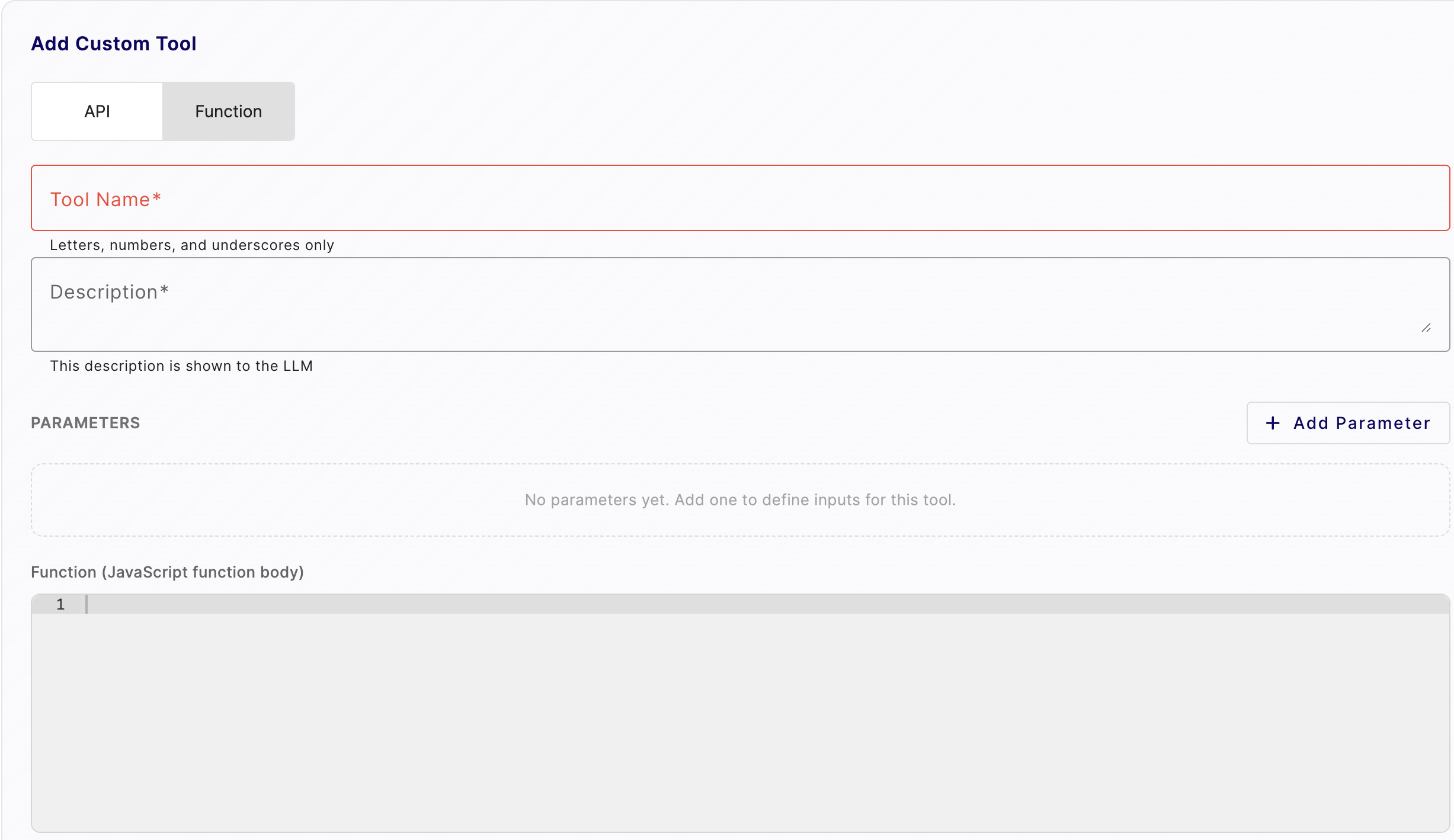
Configuration Fields
| Field | Required | Description |
|---|---|---|
| Tool Name | Yes | A unique identifier for the tool. Letters, numbers, and underscores only. |
| Description | Yes | A description of what the tool does. This description is shown to the LLM to help it decide when to use the tool. |
| Parameters | No | Input parameters that the AI assistant can pass when invoking the tool. Click + Add Parameter to define inputs. |
| Function (JavaScript function body) | Yes | The JavaScript code that executes when the tool is called. Parameters are available as variables within the function body. |
Example: Unit Conversion Tool
- Tool Name:
convert_celsius_to_fahrenheit - Description: "Convert a temperature from Celsius to Fahrenheit."
- Parameters: Add a
celsiusparameter of typenumber. - Function body:
return (celsius * 9/5) + 32;
Adding Parameters
Both tool types support custom parameters. Click + Add Parameter to define inputs for your tool. Each parameter has:
- Name: The parameter name (used as a variable in Function tools or as
{param}in API tool URLs). - Type: The data type (e.g., string, number, boolean).
- Description: Helps the LLM understand what value to provide.
- Required: Whether the parameter must be provided when calling the tool.
Best Practices
- Write clear descriptions — The LLM relies on the tool description and parameter descriptions to determine when and how to use the tool. Be specific about what the tool does and what inputs it expects.
- Use meaningful names — Tool names should clearly indicate their purpose (e.g.,
search_ordersrather thantool1). - Keep functions focused — Each tool should do one thing well. Create multiple tools rather than one complex tool.
- Validate inputs in functions — For Function tools, add input validation in your JavaScript to handle edge cases gracefully.