Creating an MCP Server Service
Quick Reference
| Property | Value |
|---|---|
| Service Type | MCP Server |
| Required Fields | Service Name |
| Auto-Generated | OAuth Client ID, OAuth Client Secret |
| Authentication | OAuth 2.0 (default); optional per-service API key authentication |
| Exposed APIs | The database and file services you select under Exposed Services |
| Supported AI Clients | ChatGPT, Claude, Cursor, any MCP-compatible client |
Overview
The Model Context Protocol (MCP) is a standardized protocol that enables AI assistants and development tools to interact with your DreamFactory services through a consistent interface. Despite the growing popularity of direct API integrations, MCP-based connections remain an essential part of modern development workflows, allowing AI assistants like ChatGPT, Claude, and Cursor to seamlessly query and manipulate your resources.
But incorporating MCP functionality into your development environment can be challenging. Fortunately, you can use DreamFactory to easily create a full-featured MCP server that exposes your services through the Model Context Protocol. A single MCP server can provide access to any number of the database and file storage services configured in your DreamFactory instance — you choose which ones under Exposed Services. This includes:
- Exploring database schemas, tables, and relationships
- Querying and filtering table data with advanced options
- Creating, updating, and deleting records
- Calling stored procedures and functions
- Managing file storage (listing, reading, creating, and deleting files and folders)
In this tutorial we'll show you how to configure DreamFactory's MCP server service, and then walk through several usage examples.
Generating the MCP Server and Companion Documentation
To create an MCP Server service, log in to your DreamFactory instance using an administrator account, select the AI tab, and then click the purple plus button to create a new connection:
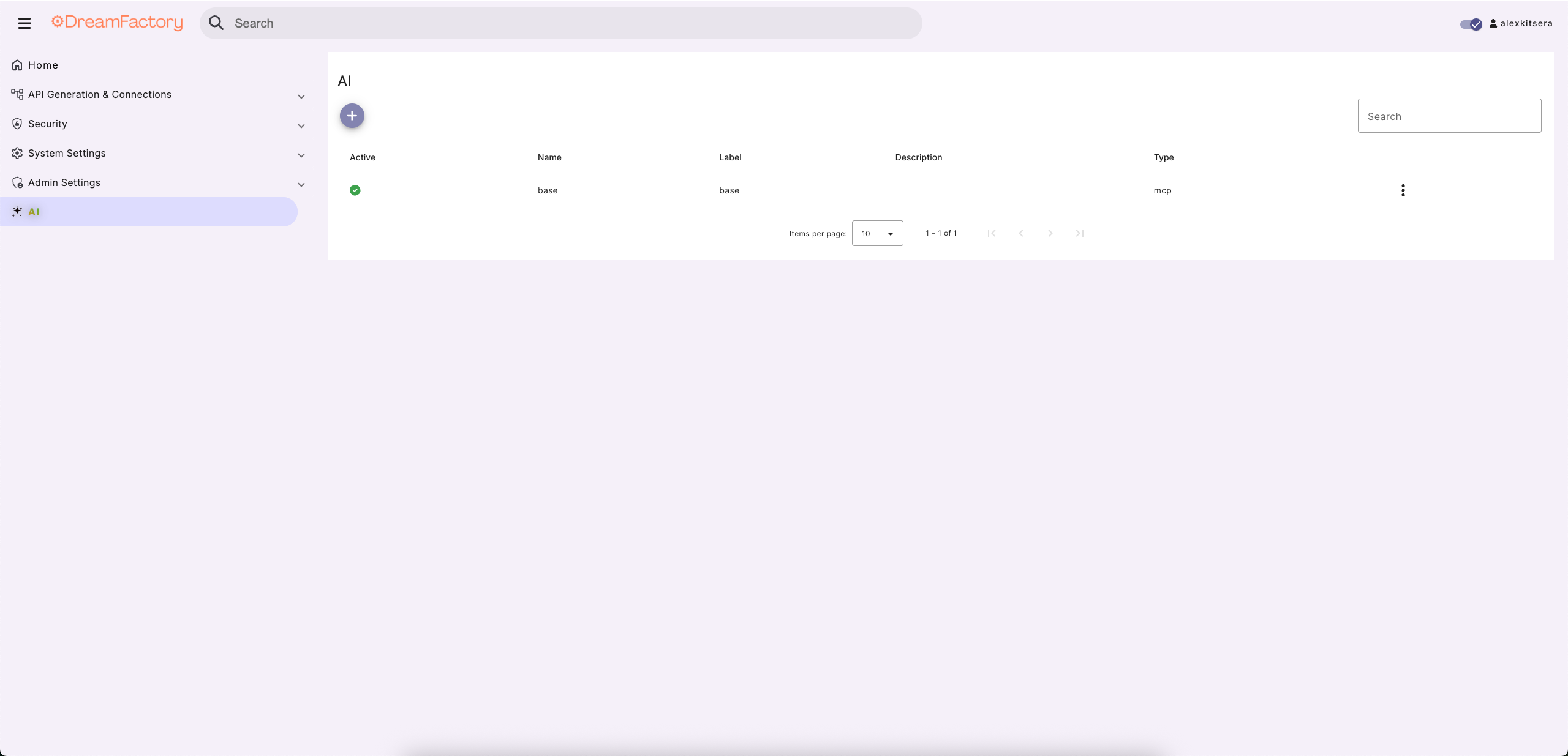
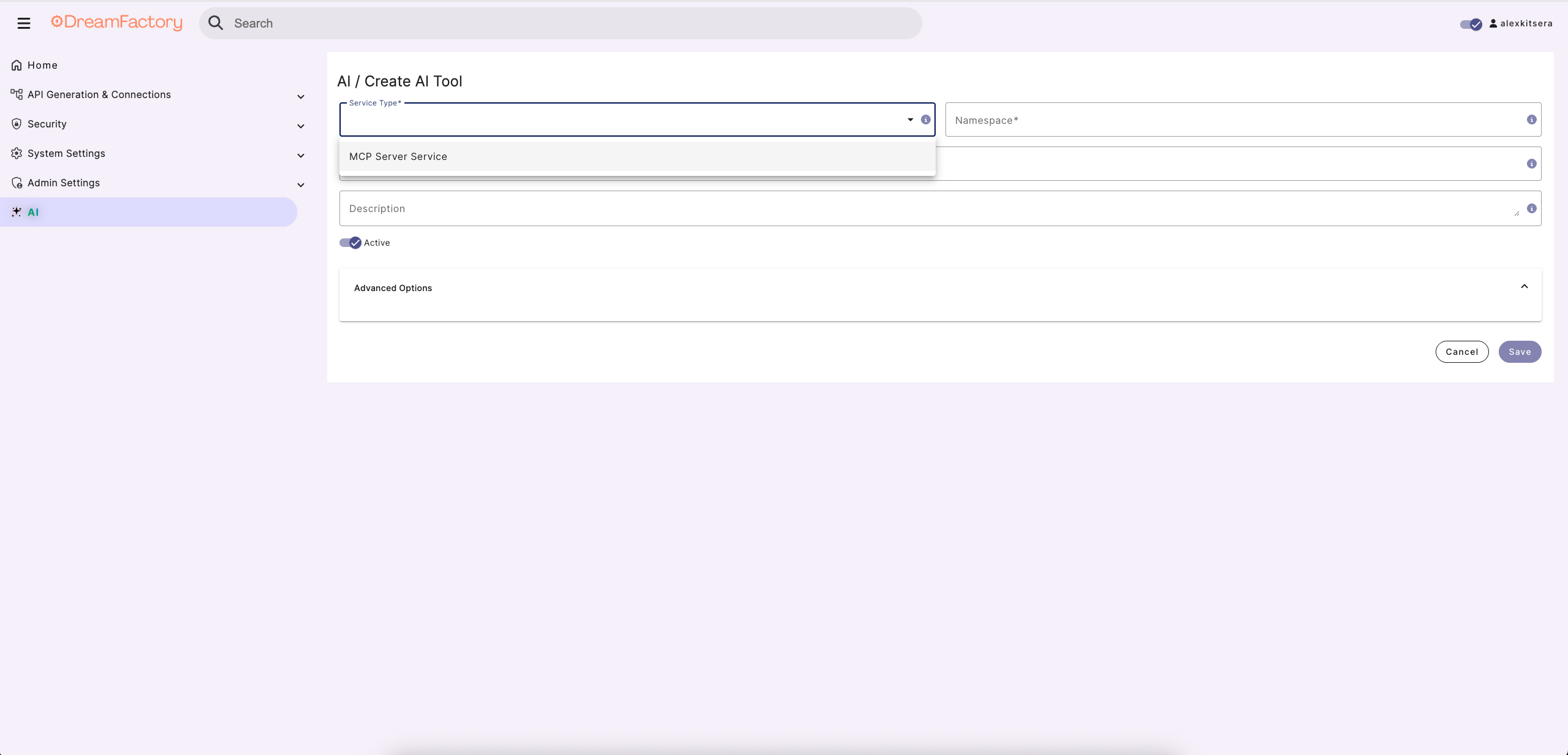
MCP Server Service is currently the only available selection. More AI connectors are on the way, so stay tuned for upcoming additions.
You'll be prompted to supply an API namespace, label, and description. Keep in mind the namepace must be lowercase and alphanumeric. The label and description are used for reference purposes within the administration console so you're free to title these as you please:
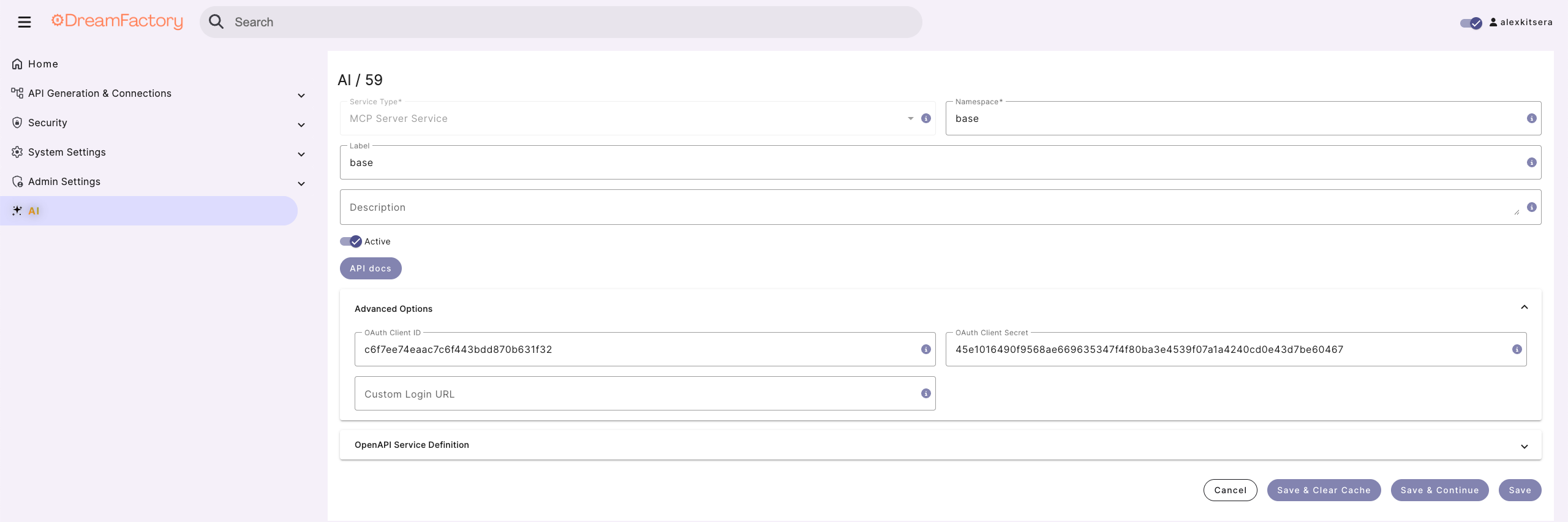
Next, you'll scroll down to the Advanced options section. There you'll find the following fields:
| Field | Description |
|---|---|
| OAuth Client ID | The OAuth Client ID is generated by DreamFactory for you. This is the field that MCP Server users are going to provide to the MCP client during connection creation. |
| OAuth Client Secret | The OAuth Client Secret is also generated by DreamFactory for you. This is the field that MCP Server users are going to provide to the MCP client during connection creation. |
| Custom Login URL | Optional field that you could use in order to have a custom MCP login page. DreamFactory's login page would be used if nothing is provided in this field. How to configure? |
| Exposed Services | Multi-select of the database and file services this MCP endpoint exposes as tools. An empty selection means no database or file tools. How does scoping work? |
| Allow API Key Authentication | Off by default. When enabled, clients can authenticate with a DreamFactory app API key in the X-DreamFactory-API-Key header instead of OAuth. How to use it? |
A single MCP server can expose any number of database and file storage services — you choose which ones under Exposed Services. New MCP services start with nothing selected, and an empty selection deliberately serves no database or file tools, so check at least one service before connecting a client. See Scoping Tools with Exposed Services.
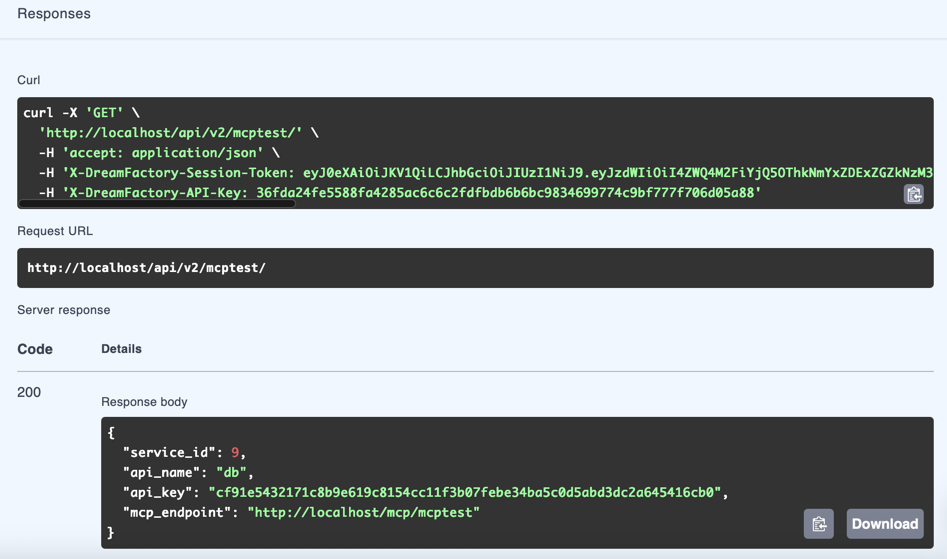
After saving your changes, head over to the API Docs tab to review the generated documentation. You'll be presented with information about the MCP endpoint by running the GET request:
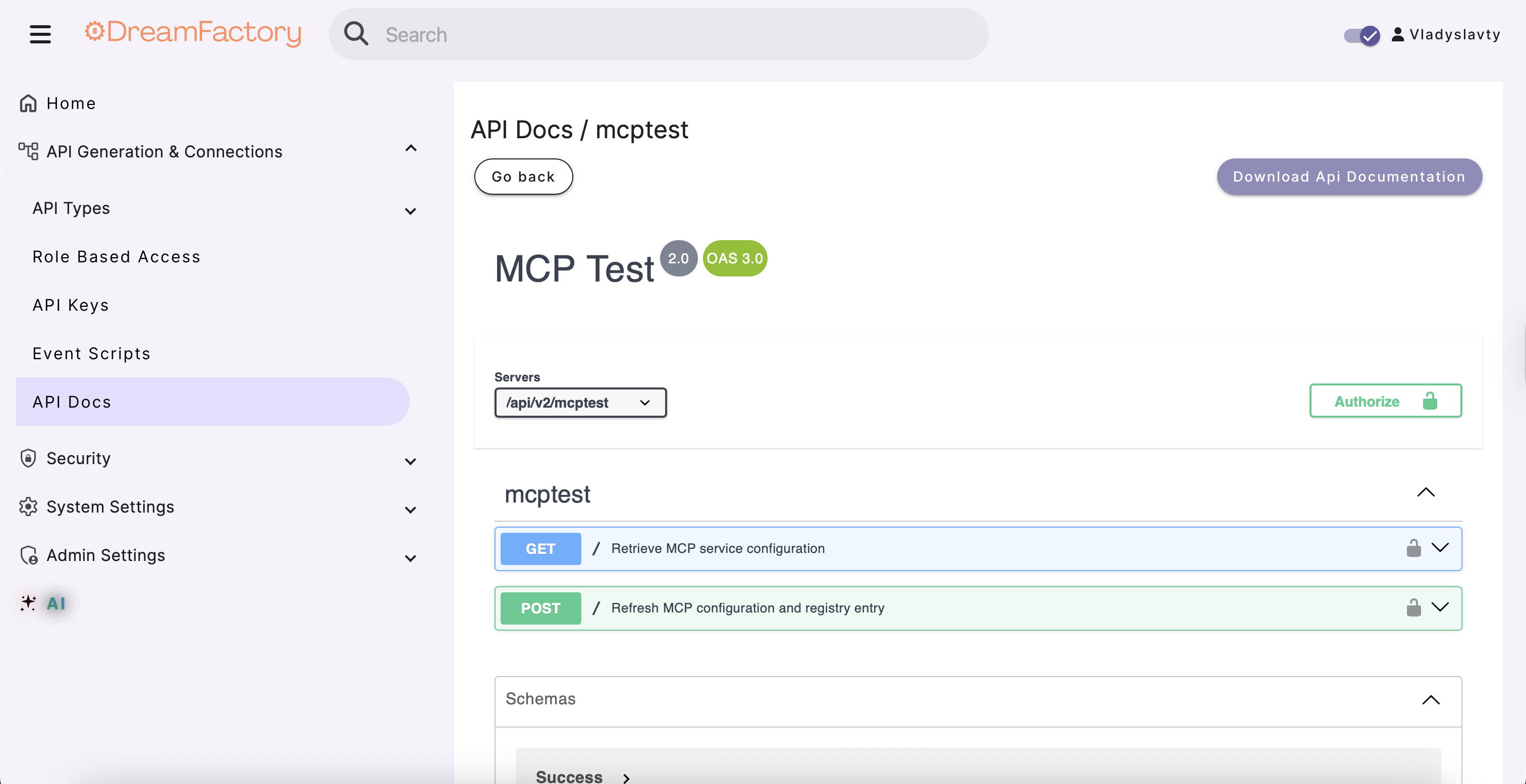
The mcp_endpoint field is what you should use for your AI Agents:
Example Of Usage
First of all you should get your mcp_endpoint that we will use in our Agent.
ChatGPT
To connect your MCP server with ChatGPT:
-
Make sure Developer Mode is enabled in ChatGPT.
-
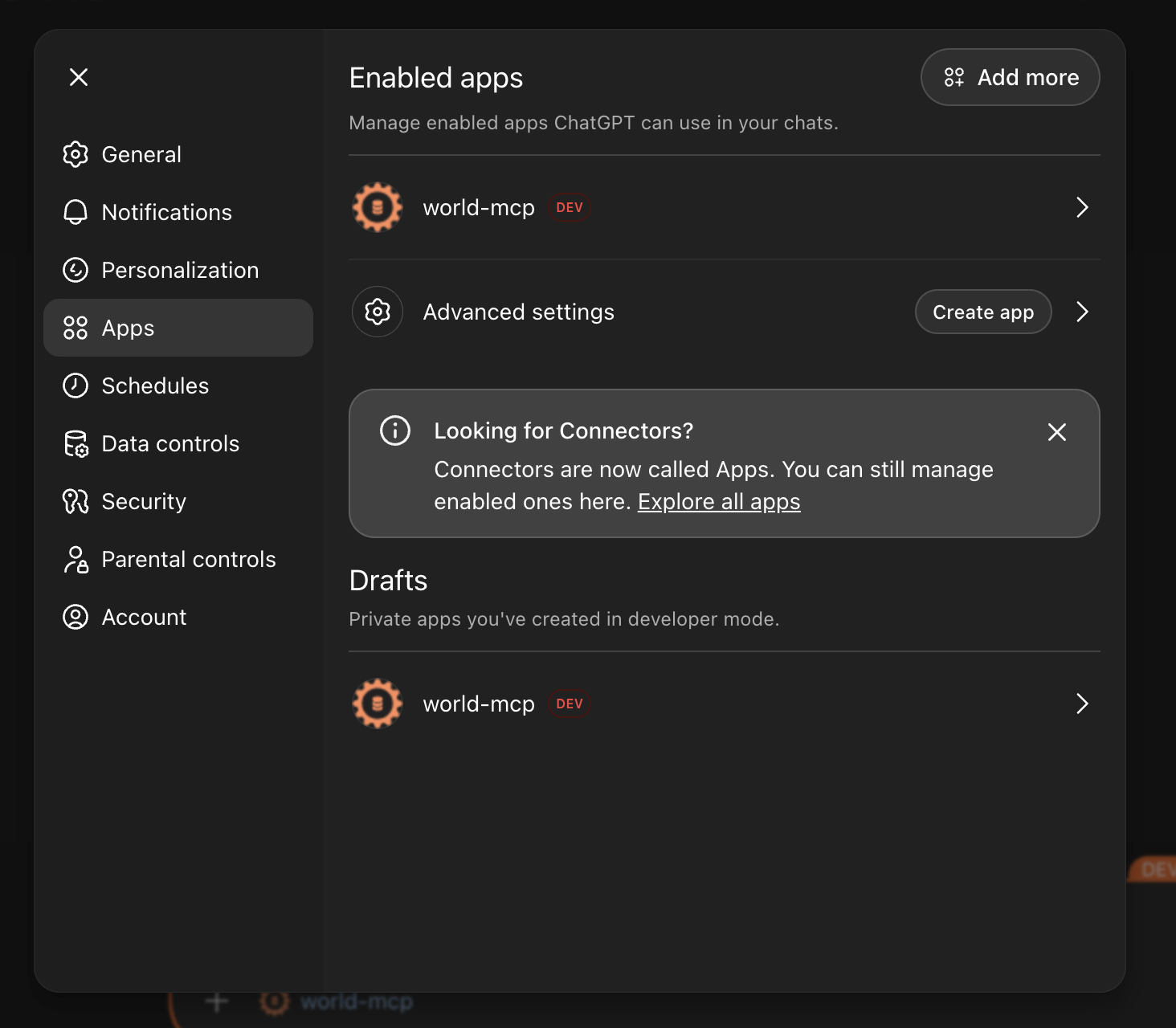
Create a new application by navigating to: Settings -> Apps -> Advanced Settings -> Create app
-
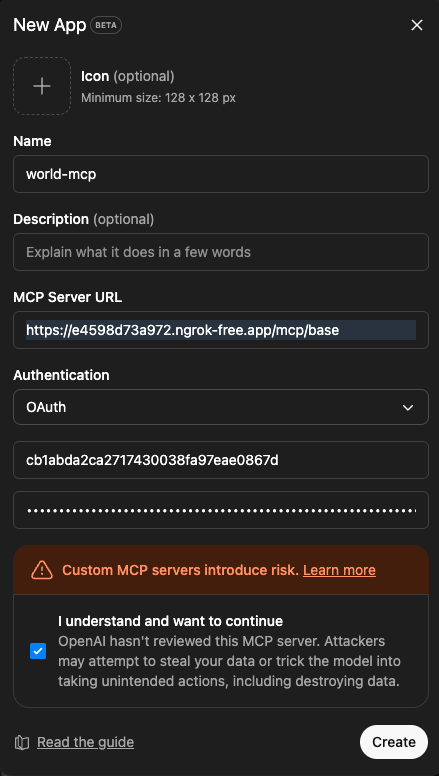
Set authentication to OAuth, use mcp_endpoint, OAuth Client ID, and OAuth Client Secret in your Agent configuration.
After creating the application, you can attach it to your chat and use its tools. For example, to show the database tables:
- Attach your newly created application to the chat.
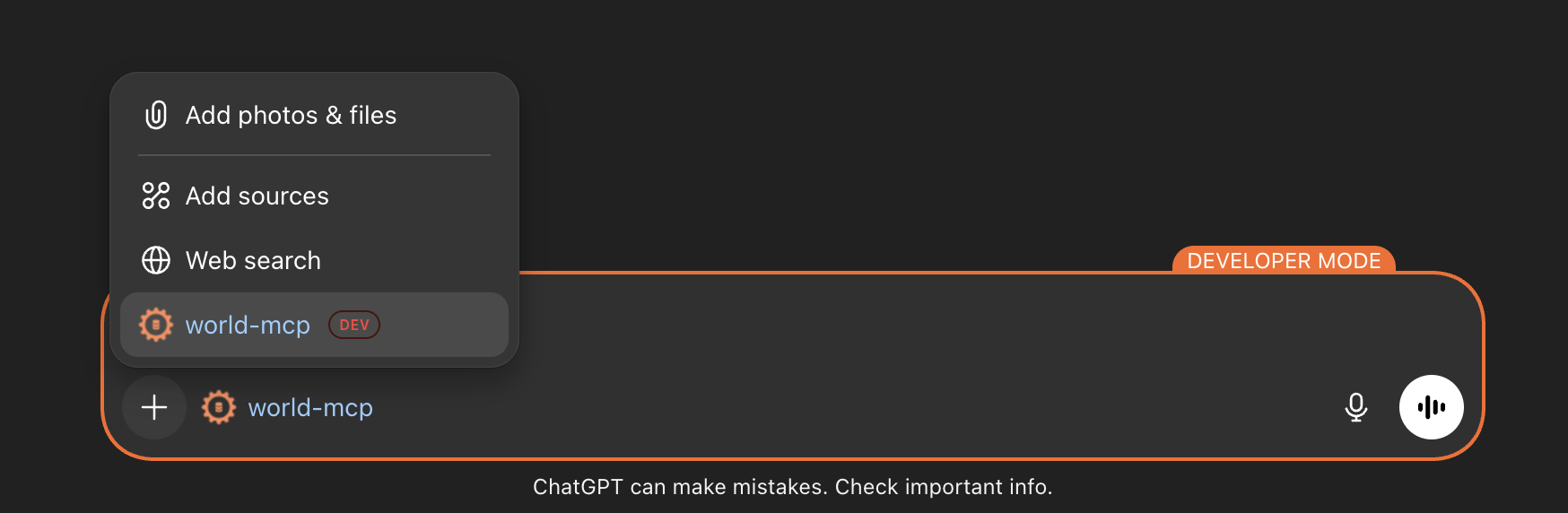
- Use the Agent commands to query the MCP server. For example:
Show me tables in my database/list tables
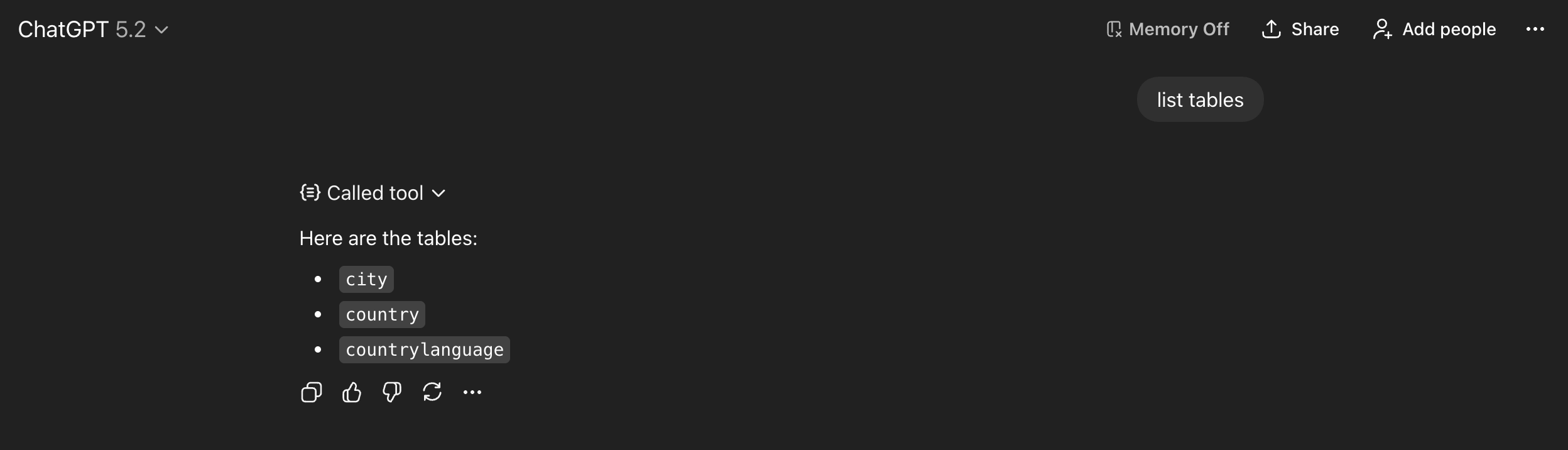
The Agent will connect to the MCP server using the mcp_endpoint and return the available database tables, allowing you to interact with your data directly from ChatGPT.
Claude Desktop
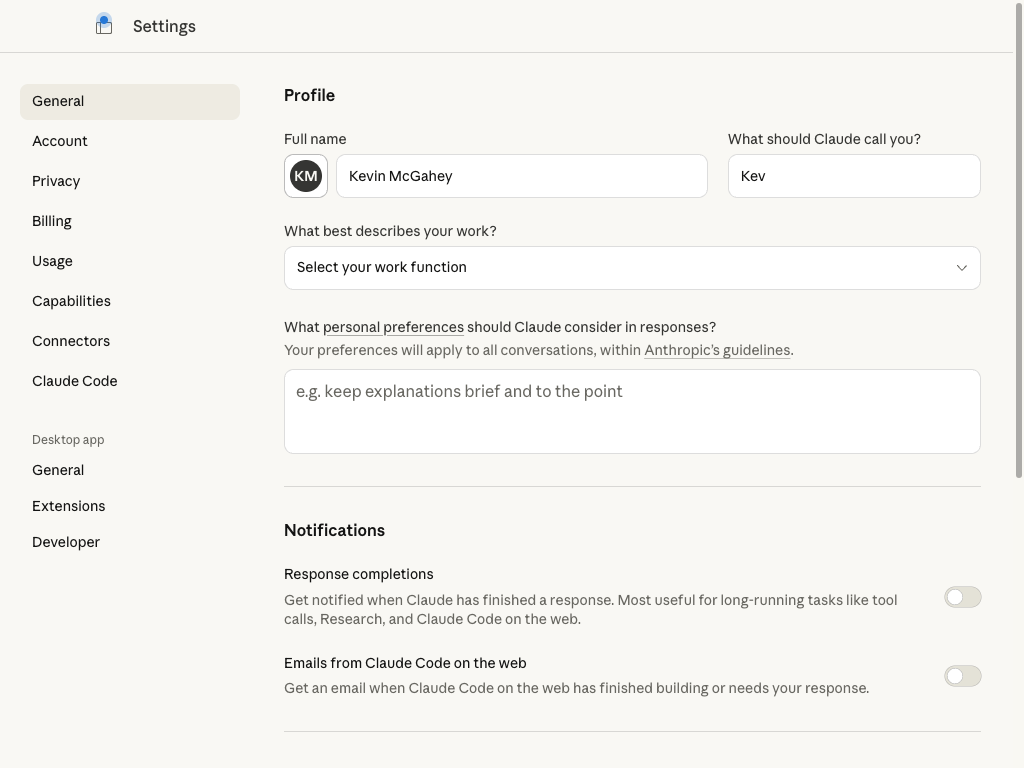
Claude Desktop connects to a remote DreamFactory MCP server through Settings → Connectors. DreamFactory supports Dynamic Client Registration (DCR), so you typically paste the MCP endpoint and let Claude register itself — you do not have to paste the OAuth client id and secret.
Requirements:
- Claude Pro, Max, Team, or Enterprise
- Claude Desktop installed
- Your DreamFactory MCP endpoint, which is
https://<host>/mcp/<service-name>with no trailing slash. How to read that URL from API Docs is in the section above; deployment and redirect-URI notes are in Deploying the MCP Server.
-
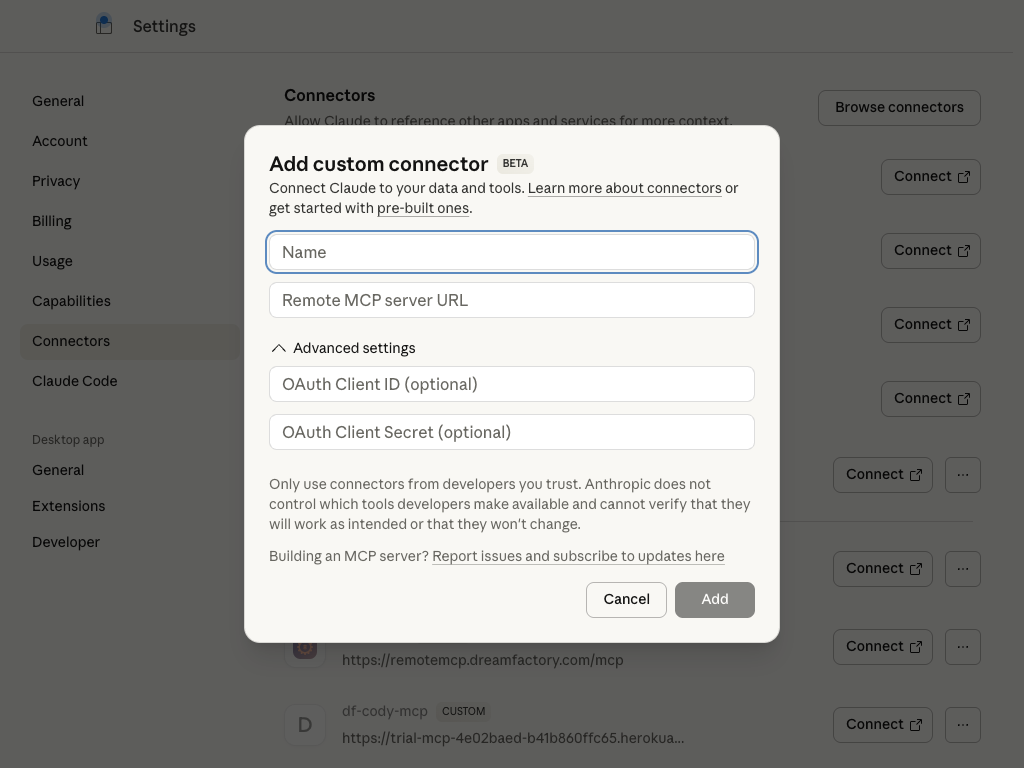
In Claude Desktop open Settings and click Connectors.
-
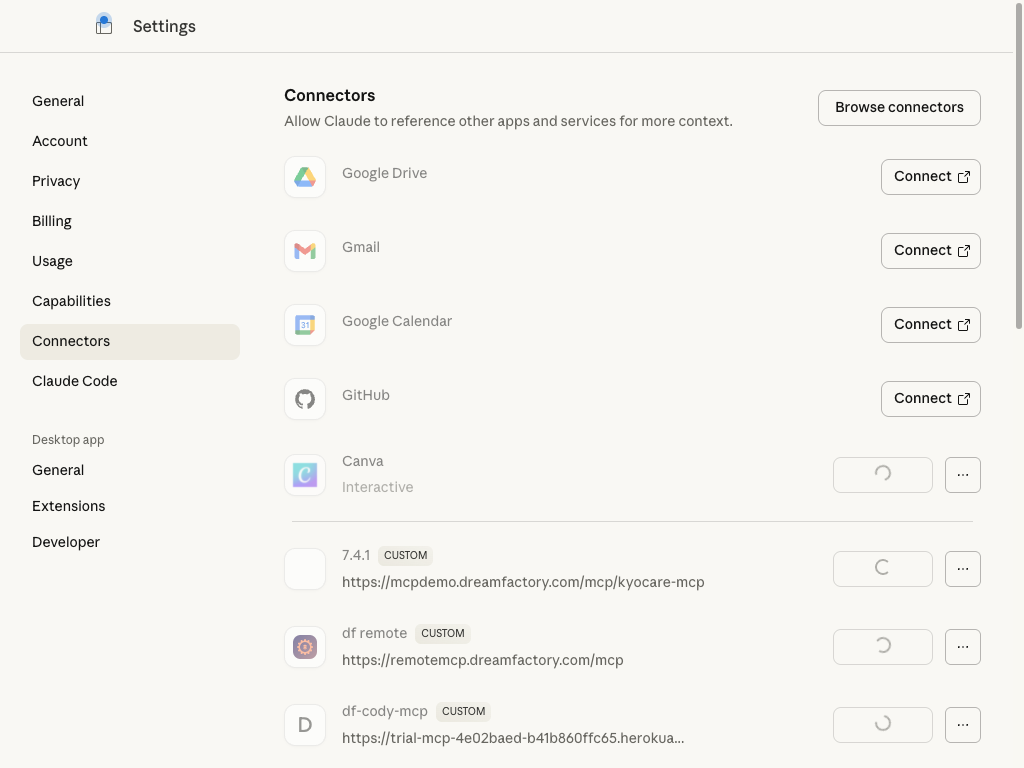
Scroll past the built-in connectors and click Add Connector.
-
Give the connector a name and paste the MCP endpoint into Remote MCP server URL.
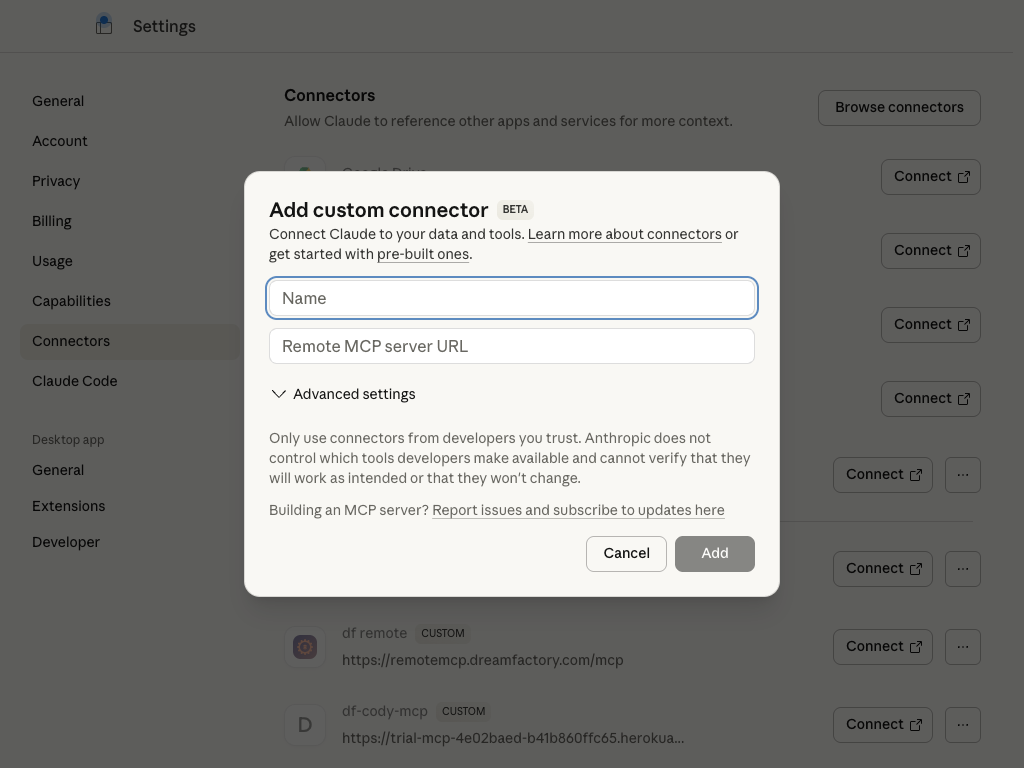
Advanced settings can hold an OAuth client id and secret. Leave them blank unless DCR is disabled on your instance.
-
Click Add. Claude discovers the OAuth endpoints, registers via DCR, and opens a browser for you to log in to DreamFactory.
-
After login, the connector is active. Ask Claude to list tables or query a service the connecting user's role can reach.
If you see redirect_uri is not registered for this client, the usual cause is a busy loopback port, not a missing Claude callback. Native clients (Claude Desktop, Cursor, VS Code) listen on http://127.0.0.1:<port>/. See Deploying the MCP Server.
Cursor and VS Code
Point the client at https://<host>/mcp/<service-name> over HTTP. A VS Code mcp.json looks like this:
{
  "servers": {
    "dreamfactory": { "type": "http", "url": "https://df.example.com/mcp/poc" }
  }
}
Cursor uses the same URL. Do not use /api/v2/... — that is the REST API and returns 400 No session token or API Key. Full proxy, APP_URL, and OAuth troubleshooting is in Deploying the MCP Server.