Custom rules
Data Masking's built-in detectors recognize personal data that has a public format: US Social Security numbers, card numbers that pass the Luhn check, IBANs, email addresses, phone numbers and the like. They can't recognize identifiers your organization invented. A payer's member reference, an employee badge number or a court case number looks like any other code until you say what it is.
A custom rule says it. It states that columns whose name, or whose values, match a pattern hold a class you choose, and Data Masking masks them as that class.
Rules only add masking. A rule can mask a column or move it to a stricter class. It never unmasks a column, never moves it to a weaker class, and never changes a column an admin decided on the Columns tab.
Quick reference
| Concept | Description |
|---|---|
| Admin UI path | Security > Data Masking, Detection tab, Add rule |
| REST API | GET and POST /api/v2/system/data_masking/rule, DELETE /rule/{id}, POST /rule/test |
| Targets | Column name (the column's name, never the table's) or Column values (values a scan samples) |
| Pattern | PCRE without delimiters, case-insensitive, Unicode-aware, at most 500 characters |
| Value rule threshold | At least 3 sampled values match, and at least half of the column's sampled non-null values |
| When a rule applies | Name rules: at once, to scanned columns. Value rules: at the scan that adding the rule starts |
| Who can add or delete | Any full system administrator. AI and MCP sessions get 403 |
| Editing | Not possible. Add the new rule, then delete the old one |
When you need a rule
Add a custom rule when:
- The identifier is your own. Member references, badge numbers, case numbers and internal account numbers follow formats only your organization knows.
- The column name says nothing. A column called
ref1orhopsgives the classifier no hint. If its values match no built-in detector either, the scan marks it not sensitive. - The same kind of column keeps appearing. A rule also covers columns that don't exist yet, and a value rule catches a copy of an identifier stored under another name.
If only one column is wrong, you don't need a rule. Change its class on the Columns tab instead (see Review columns). That decision is sticky, and rules never override it.
Built-in rules and custom rules
The Detection tab has two parts:
- Custom rules lists the rules you and Compliance baselines added, with the Add rule button. Until there is one, it reads "No custom rules".
- Built-in rules starts collapsed. Its label names the ruleset and its version:
dreamfactory.core 2026.11.1.
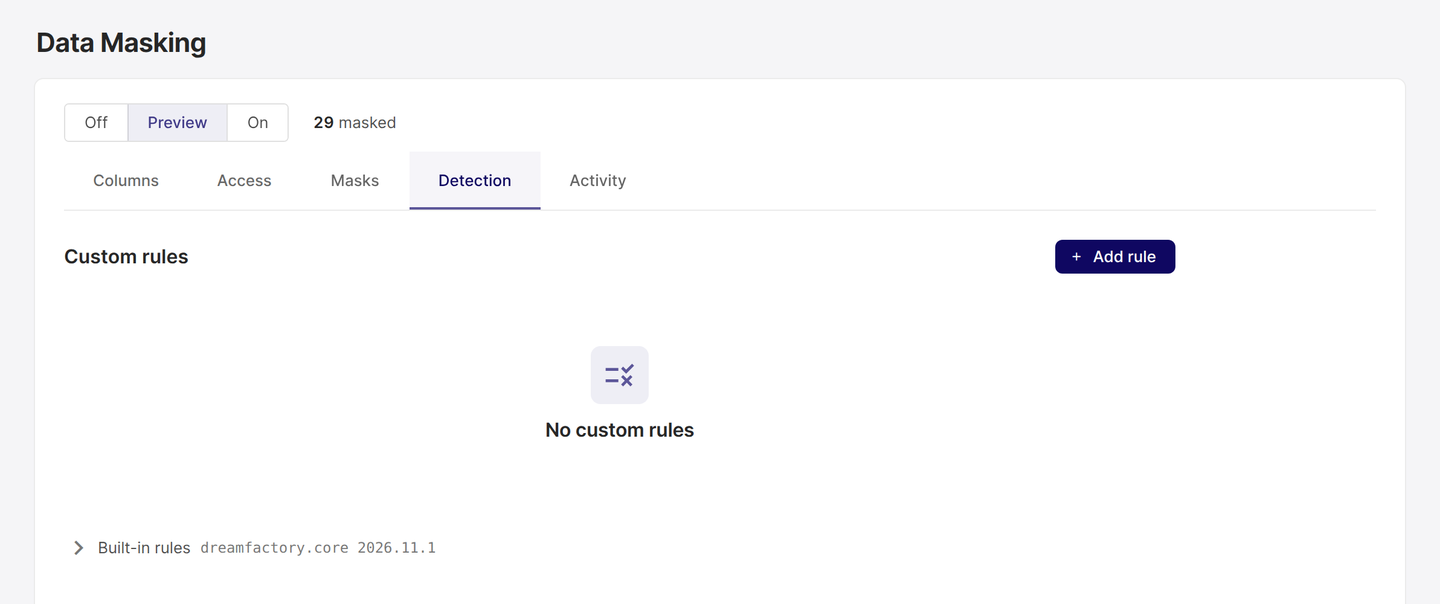
Expand Built-in rules to see the detectors each class uses, grouped by tier. The list is read-only: you can't edit or turn off a built-in detector. Custom rules add to them.
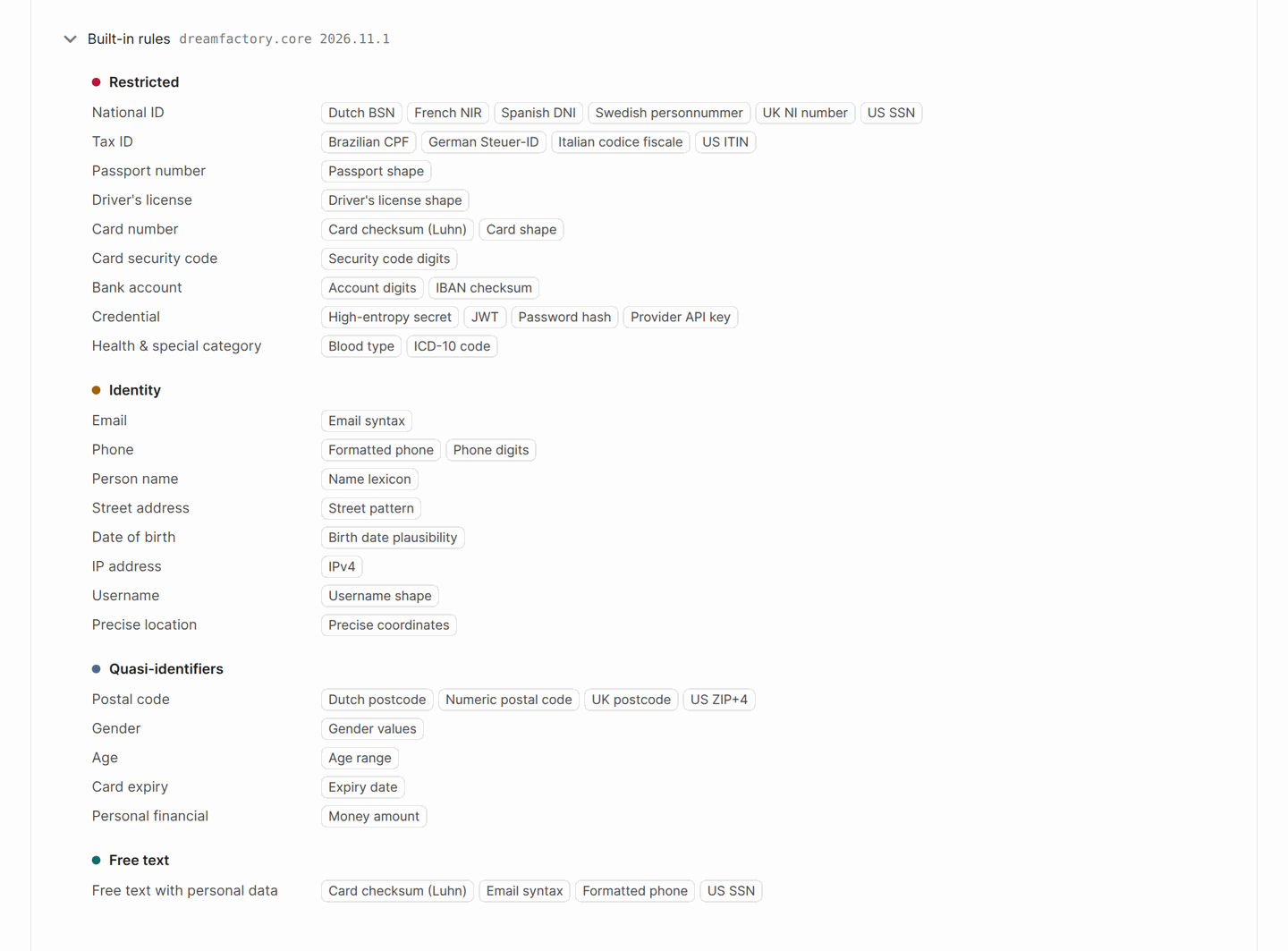
Detectors are one input to classification. A scan also scores the column name and its table. Review columns explains scores and verdicts, and Classes and mask formats describes the 23 classes.
Tutorial: cover a payer member reference
Acme Health's billing database has a claims table with a member_ref column. It holds payer member references such as XKP482019374: three letters, then nine digits. The first scan marked the column not sensitive, because neither its name nor its values match a built-in rule. The references identify a health plan member, so Acme wants them masked like other health data.
You'll add two rules:
- A name rule that masks
member_refright away. - A value rule that masks the same references in any column, under any name, at the next scan.
Before you start, run a scan (see Get started). Name rules apply to scanned columns, and the dialog's suggestions and preview come from them.
1. Add a name rule
-
Open Security > Data Masking and select the Detection tab.
-
Click Add rule. The dialog opens on Column name, with the operator is.
-
Type
member. A list suggests scanned column names that contain what you typed, names that start with it first. The preview reads Matches 0 columns, because is compares the whole name and no column is named exactlymember.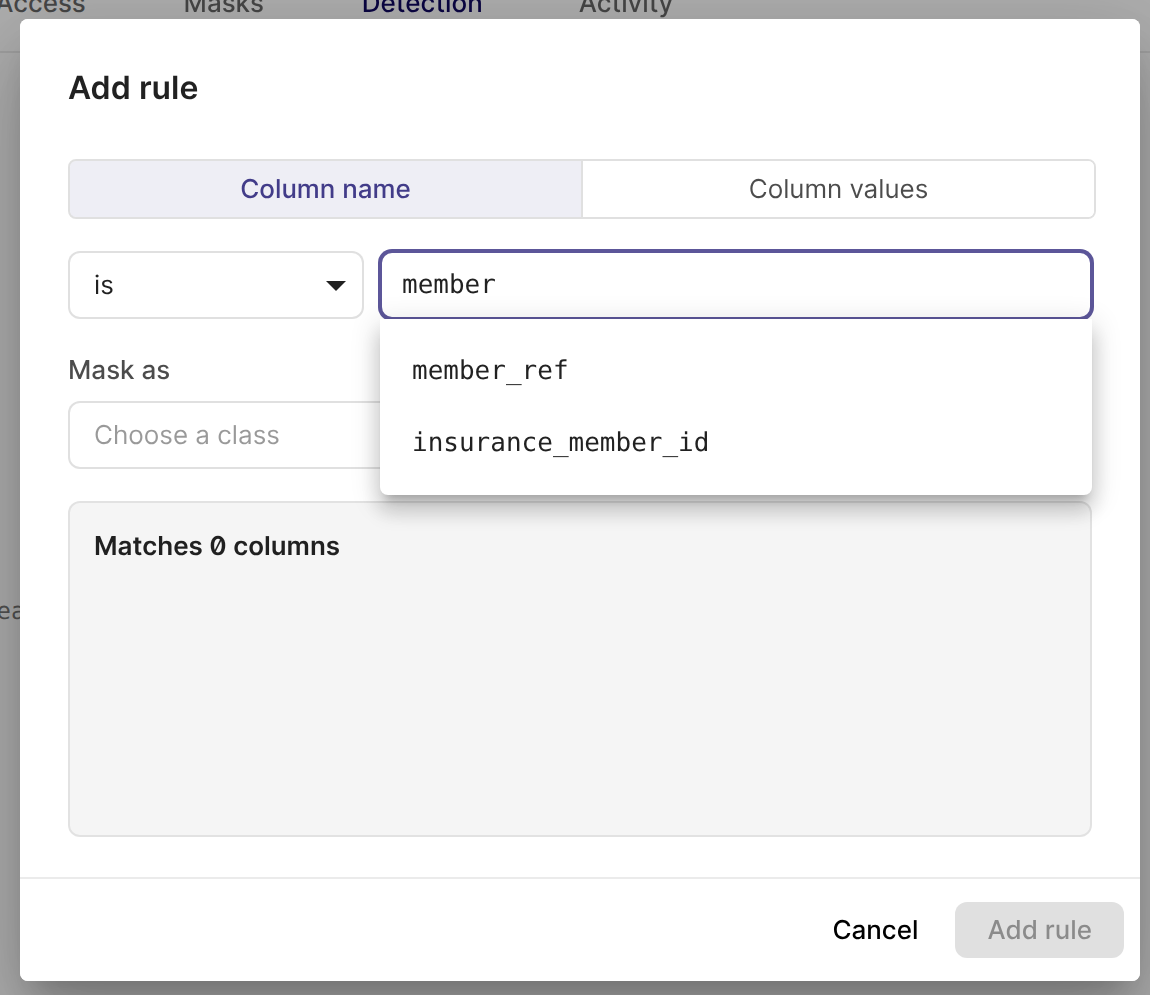
-
Pick
member_ref. It becomes a chip. -
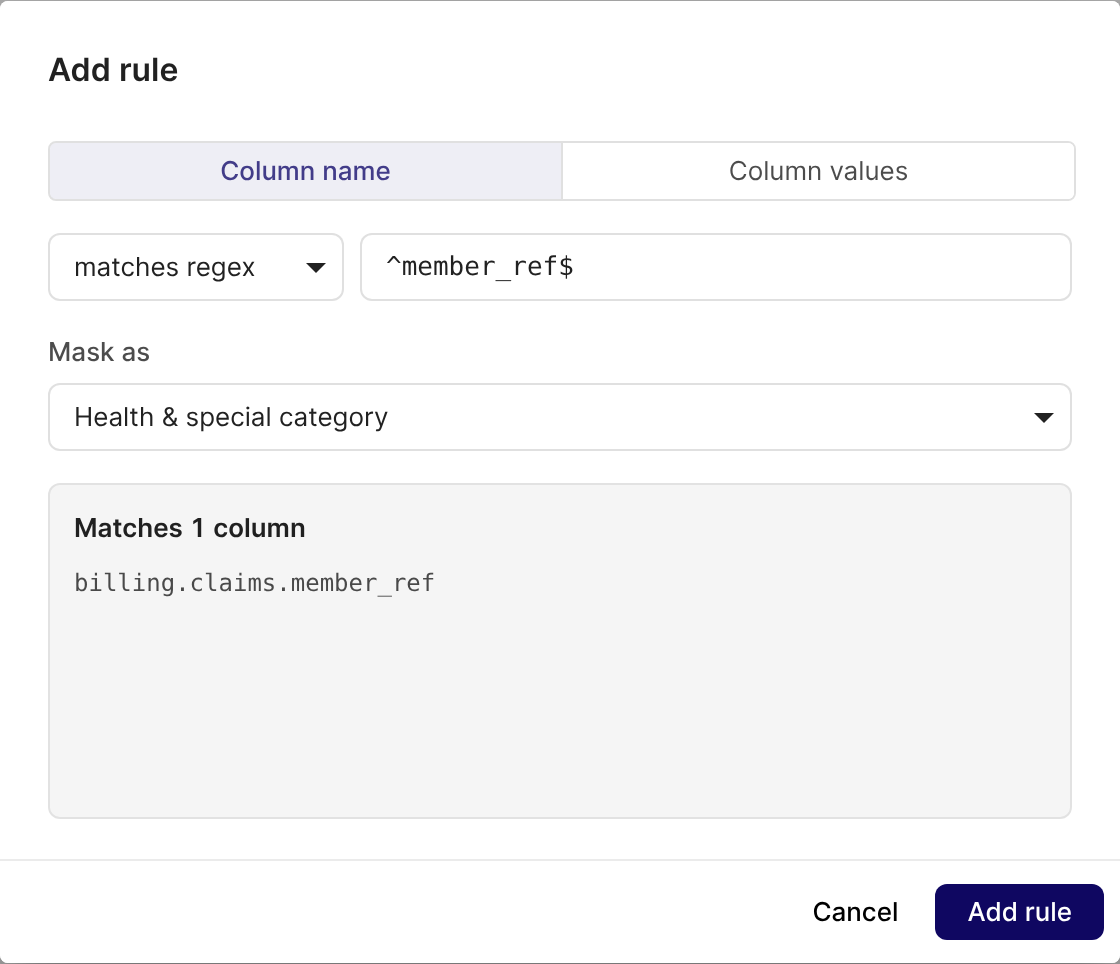
In Mask as, choose Health & special category. The preview now reads Matches 1 column and lists
billing.claims.member_ref.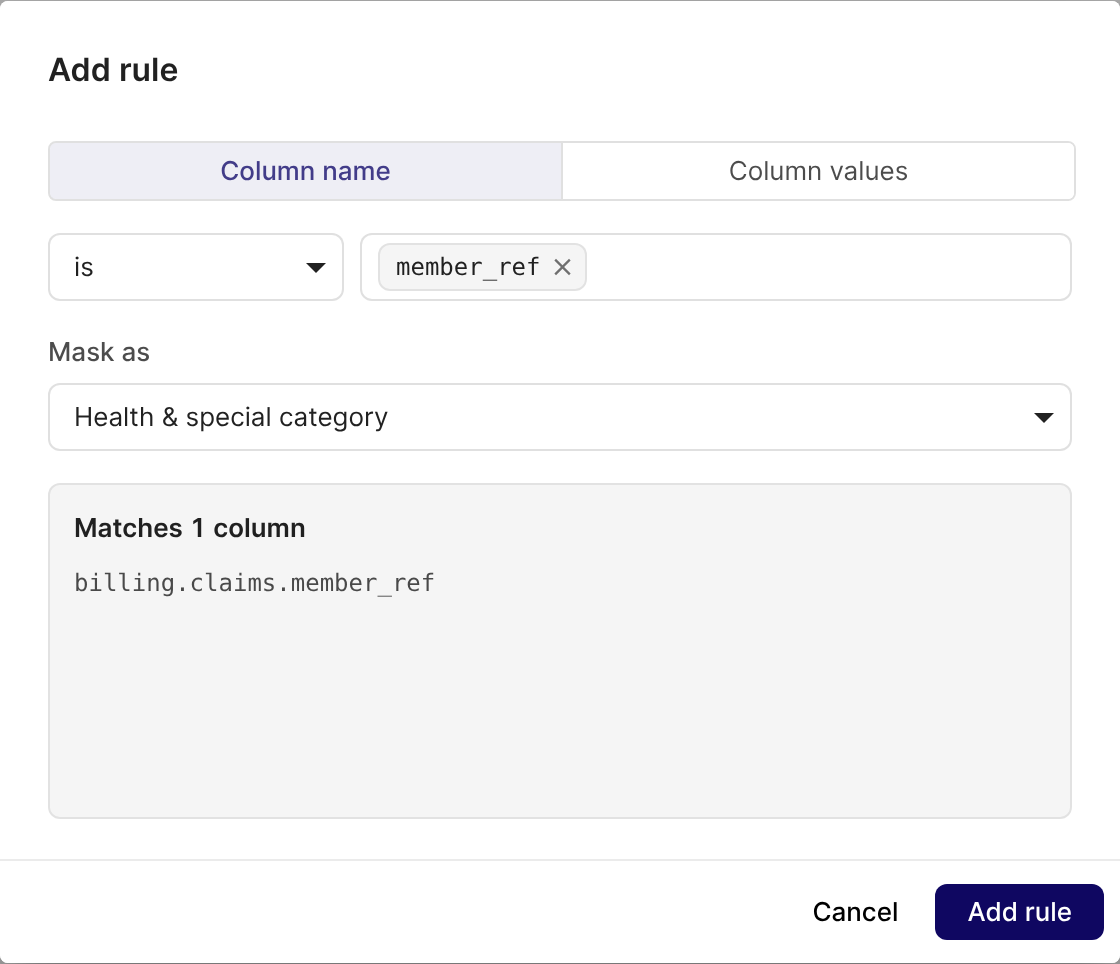
-
Click Add rule. The toast reads "Rule added and applied." The column is masked at once, without a scan, and the header count goes from 29 masked to 30 masked.
2. Add a value rule
-
Click Add rule again and select Column values. The operator is look like.
-
Type a real-looking example,
XKP482019374, and press Enter. The chip showsAAA#########. Your browser turned the example into its shape, and only the shape is sent to the server and stored. -
In Mask as, choose Health & special category. The preview samples your databases live and reads Matches 1 column,
billing.claims.member_ref.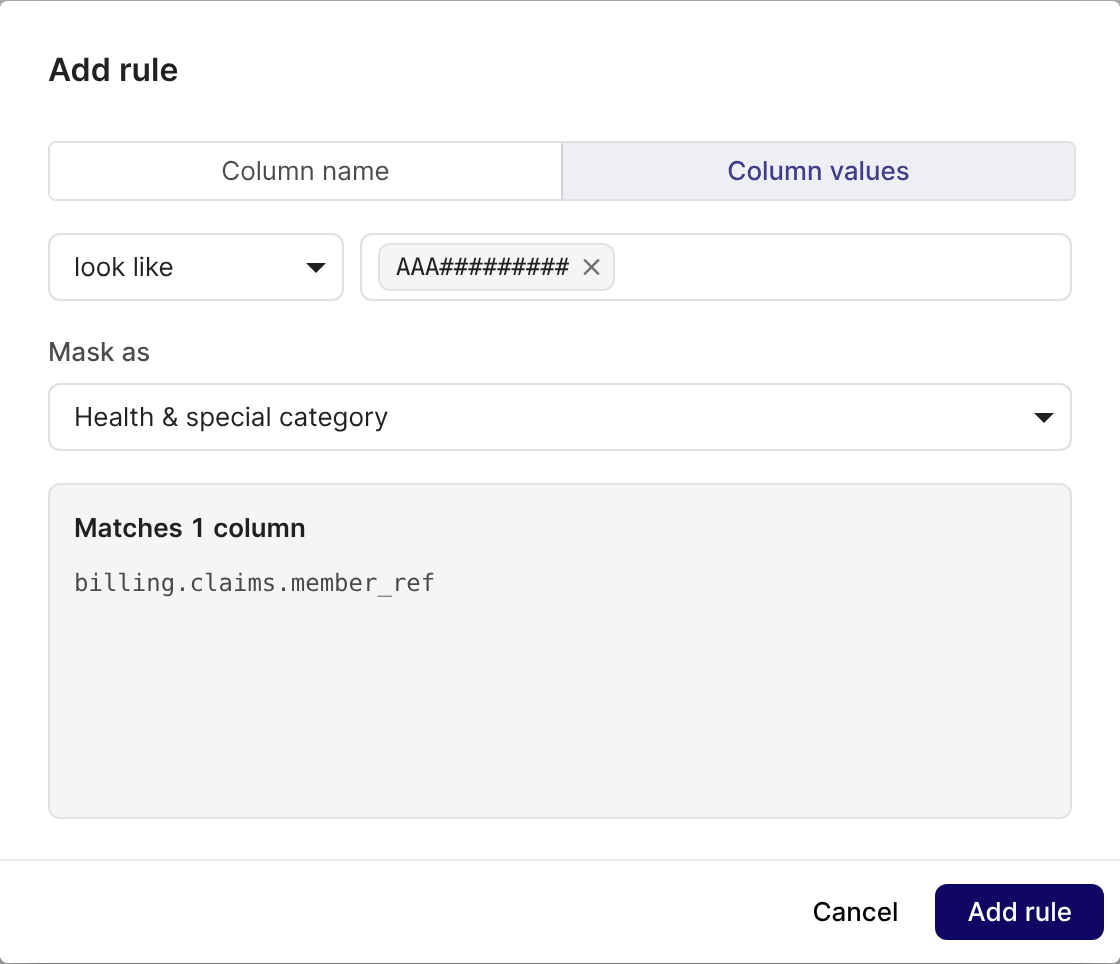
-
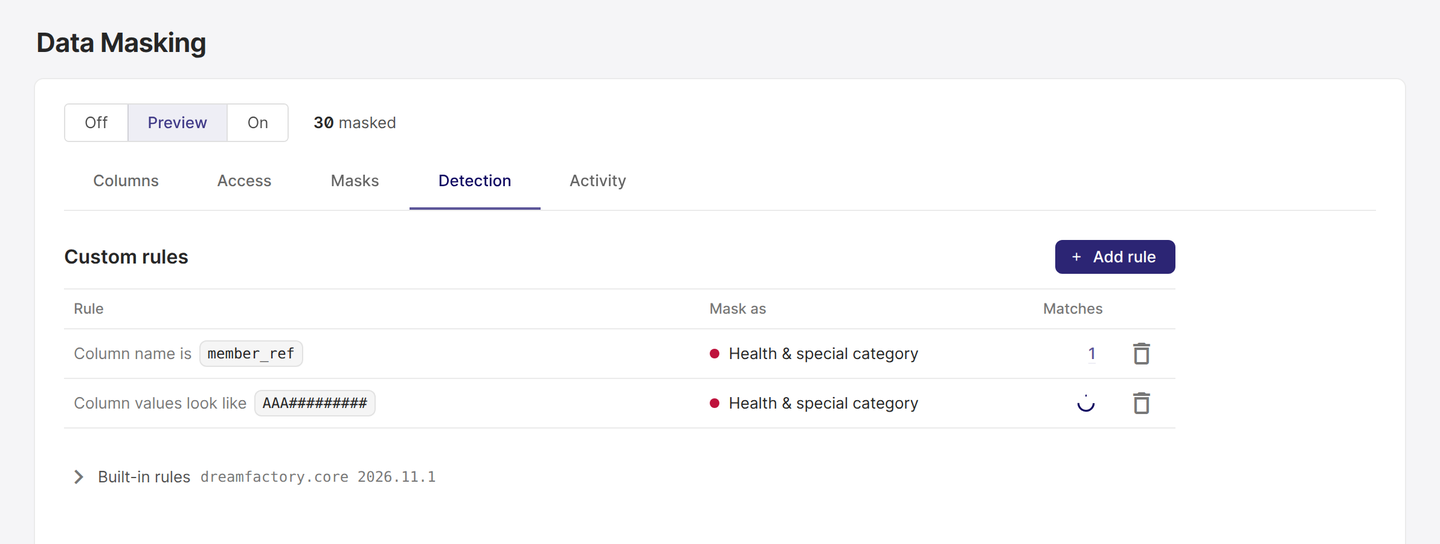
Click Add rule. The toast reads "Rule added. Scanning to apply it." Data Masking starts a scan of every covered database. While it runs, the value rule's Matches cell shows a spinner.
-
When the scan finishes, both rules show Matches 1.
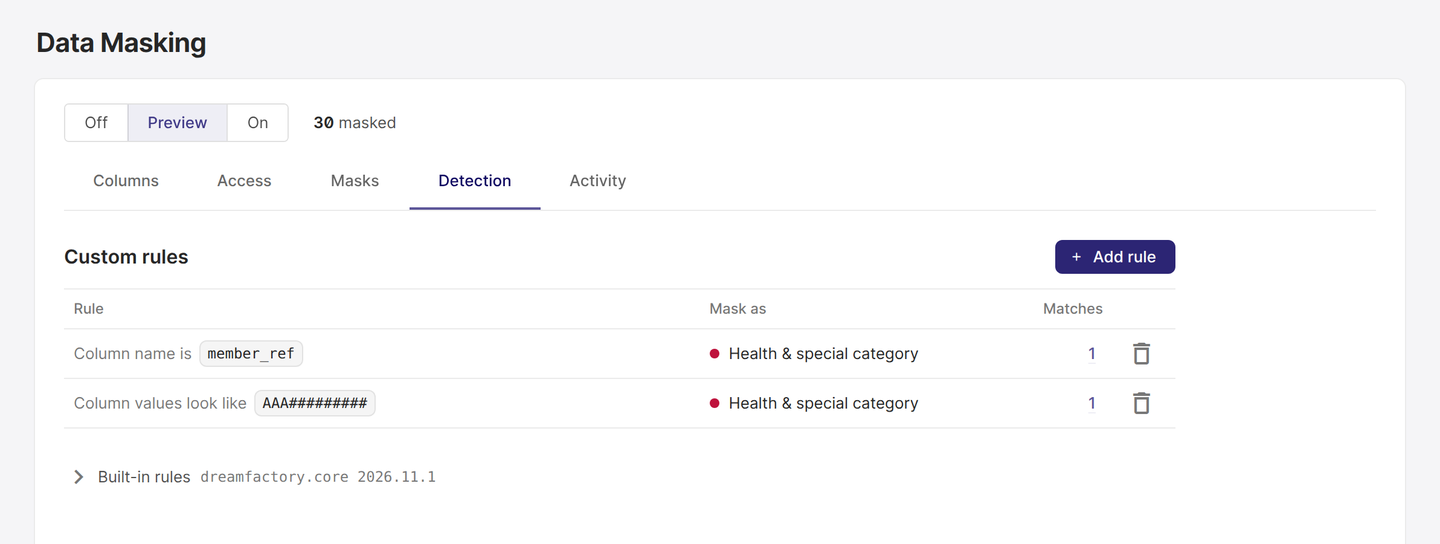
The Activity tab now lists "Added a column name rule for Health & special category", "Added a value rule for Health & special category", "Scan started to apply a value rule" and the scan's "Scan finished" row.
The value rule matched member_ref too, but the name rule had already masked it as Health & special category. So the scan only noted the match in the column's evidence, on a line that starts with Also matches: Custom value rule. The value rule earns its place when a member reference turns up under another name, such as a payer_member column added to a new table.
The Add rule dialog
The dialog builds a rule as a sentence: a target, an operator and one or more terms, then a class.
| Target | Operators (the first is the default) |
|---|---|
| Column name | is, contains, starts with, ends with, matches regex |
| Column values | look like, contain, start with, match regex |
Column values have no "ends with". Use match regex with a pattern that ends in $ instead.
Terms
- Type a term and press Enter, or type a comma, to make it a chip. Pasting a list separated by commas, tabs or line breaks makes one chip per item. Text you typed but haven't committed already counts in the preview.
- Several chips mean any of them. The dialog joins them with "or".
- Terms are literal text. The dialog escapes regex characters, so
@example.commatches a real dot, not any character. - Matching is case-insensitive, so chips that differ only in case are merged into one.
- A comma always ends a term, so a term can't contain one. Use matches regex for that.
- Column name is suggests up to 8 scanned column names that contain what you type.
- Switching between Column name and Column values keeps your terms only for contains and starts with. Moving to or from look like clears them.
Look like: describe a shape
look like matches values that have a fixed shape. Type a real-looking example, or type the shape itself:
- Any letter, in any script, becomes
Aand matches any letter. - Any digit, and
#, becomes#and matches any digit. - Every other character stays itself: dashes, spaces, slashes and dots.
| You type | Chip | Pattern sent |
|---|---|---|
XKP482019374 | AAA######### | ^\p{L}{3}\d{9}$ |
AB123456 | AA###### | ^\p{L}{2}\d{6}$ |
MRN-0042 | AAA-#### | ^\p{L}{3}-\d{4}$ |
123-45-6789 | ###-##-#### | ^\d{3}-\d{2}-\d{4}$ |
The conversion happens in your browser. The example never reaches the server, the rules list or the Activity log: only the shape does.
A shape matches the whole value, and it keeps no letters. AAA-#### matches MRN-0042, and also XYZ-9999. To require literal letters, such as a fixed EMP- prefix, use start with or match regex.
What each sentence sends
Data Masking stores the pattern, not the sentence. Each sentence compiles to this:
| Target | Operator | Terms | Pattern sent |
|---|---|---|---|
| Column name | is | emp_ssn | ^emp_ssn$ |
| Column name | is | emp_ssn, social_sec | ^(?:emp_ssn|social_sec)$ |
| Column name | contains | ssn | ssn |
| Column name | contains | ssn, tax_id | (?:ssn|tax_id) |
| Column name | starts with | tax_ | ^tax_ |
| Column name | ends with | _ssn | _ssn$ |
| Column name | matches regex | ^emp_ssn$|social_sec | as typed |
| Column values | look like | XKP482019374 (chip AAA#########) | ^\p{L}{3}\d{9}$ |
| Column values | look like | 123-45-6789, AB123456 | ^(?:\d{3}-\d{2}-\d{4}|\p{L}{2}\d{6})$ |
| Column values | contain | @example.com | @example\.com |
| Column values | start with | EMP- | ^EMP- |
| Column values | match regex | ^[A-Z]{2}\d{6}$ | as typed |
Switching to matches regex (or match regex) fills the text box with the pattern of the sentence you built, so you can start from it. Switching back restores the chips when the pattern is one the dialog writes.
Writing a pattern
With matches regex or match regex, you write the pattern yourself:
- It's a PCRE pattern without delimiters. Write
^INV#\d{5}$, not/^INV#\d{5}$/. Characters such as/,#and~are ordinary characters. - It's case-insensitive.
[A-Z]also matches lowercase letters. - It's Unicode-aware.
\p{L}matches a letter in any script and\da digit in any script. - It matches anywhere in the name or value unless you anchor it.
ssnmatchescustomer_ssn_hash.^ssn$matches onlyssn. - It can be at most 500 characters. Leading and trailing spaces are removed.
Problems replace the preview count, in red. While a pattern problem shows, Add rule stays disabled:
| Message | Cause |
|---|---|
Not a valid pattern | The regex is longer than 500 characters. |
Too many terms for one rule | The chips compile to a pattern longer than 500 characters. Split them over two rules. |
Not a valid pattern: Missing closing parenthesis at offset 4. | The server can't compile the pattern (here, (abc). The text after the colon comes from PCRE. |
This pattern is too complex to evaluate safely; simplify nested repetition such as (a+)+. | The pattern backtracks too much on test input. |
This rule already exists. | Shown after you click Add rule: a rule with the same target, pattern and class exists. |
Choose the class
Mask as sets the class the rule gives matching columns. Its options are grouped by tier. The class decides two things:
- The format. Formats are set per class on the Masks tab. Health & special category uses Redact by default, so apps get
••••••••. - Who sees real values. A role set to "All except restricted" still gets masked values for the nine Restricted classes, Health & special category among them.
See Classes and mask formats and Who sees real values.
The live preview
250 ms after each change, the dialog tests the rule and shows Matches N columns, with up to five service.table.column ids (or four and "and N more").
- Name rules are tested against the column names your scans stored. The answer is exact and instant.
- Value rules are tested by sampling your databases live, up to 64 rows per table, within a total budget of 3 seconds (
DF_MASKING_RULE_TEST_BUDGET_MS, default3000, minimum250). When the budget runs out, a database can't be read, or a warehouse is skipped, the preview reads Matches at least N columns. Snowflake, Databricks, Trino, Dremio and BigQuery services are never sampled by a test, to avoid query costs. - A scan samples more rows (up to 256 per table) than the preview, so the columns the scan masks can differ from the preview.
How rules apply
Name rules
A name rule matches the column name only, never the table or database name. It applies to columns in every covered database.
It takes effect the moment you add it, on every column your scans have stored. No scan is needed. A column that appears later gets the rule when it is scanned.
Value rules
A value rule matches the values a scan samples. It masks a column when both of these are true:
- at least 3 sampled values match, and
- at least half of the column's sampled non-null values match.
Values are trimmed before matching, so space-padded CHAR(n) values (common on SQL Server and Oracle) match an anchored pattern. Nulls don't count, and a column with fewer than 3 non-null values in the sample never matches.
Adding a value rule starts a scan of every active covered database, so the rule applies without anyone clicking Scan now:
- If a scan is already running, another one starts when it ends.
- On an instance that was never scanned and is Off, no scan starts. The first scan applies the rule, and the toast reads "Rule added and applied." instead.
- The rule's Matches count stays at 0 until its scan finishes.
Value rules see sampled values only. They don't reach virtual (computed) fields or binary columns, which are never sampled, or columns whose values a scan couldn't read. Snowflake, Databricks, Trino, Dremio and BigQuery are scanned from column names only unless you scan with sampling: php artisan df:masking scan --sample, or POST /api/v2/system/data_masking/scan with {"sample": true}.
When several rules match
- The strictest class wins. Tiers rank Restricted, then Identity, then Quasi-identifiers, then Free text. When several rules match a column, the rule whose class is in the strictest tier wins. Between rules of the same tier, the oldest one wins.
- A rule only tightens. It masks a column that is not sensitive, a column to review in the same or a weaker tier, or a masked column in a weaker tier. In every other case the match is only noted in the column's evidence as
Also matches: .... - A rule-masked column is masked, not to review. Its score becomes at least 70, and its evidence names the rule:
Custom rule ^member_ref$for a name rule, orCustom value rule ^\p{L}{3}\d{9}$: N of M values matchfor a value rule. - Rules never touch admin decisions. A column an admin kept masked, gave a class or marked Not sensitive keeps that decision, even when a new rule or baseline rule matches it. To apply the rule's class, change the column on the Columns tab.
- Rules never unmask. Deleting a rule, or data changing so a value rule stops matching, leaves the column masked.
The rules list
Each rule shows as a sentence, its Mask as class and a Matches count.
- A pattern the dialog can't read back as a sentence shows as "Column name matches regex" or "Column values match regex", followed by the pattern. A plain list such as
ssn|tax_idreads back as "Column name contains ssn or tax_id". A long regex is cut off: hover it to see the full pattern. - Matches on a name rule counts every scanned column whose name matches, including columns that were already masked with a stricter class or decided by an admin. It can be higher than the number of columns the rule masked.
- Matches on a value rule counts the columns whose evidence holds the rule's line after the last scan,
Also matches:lines included. - Click the count to see the columns. The tab tests the rule again live and opens Columns on the matching columns, with the rule's sentence in the filter chip. For a value rule, this live list can differ from the stored count.
Rules can't be edited. Add the new rule first, then delete the old one, so the columns are covered the whole time.
Rules from Compliance baselines
Applying a Compliance baseline can add name rules. They are listed as "Column name" followed by the baseline's title instead of the pattern, with the line "Added by the HIPAA baseline" (or the name of the baseline that added them) below it. Hover the title to see the pattern.
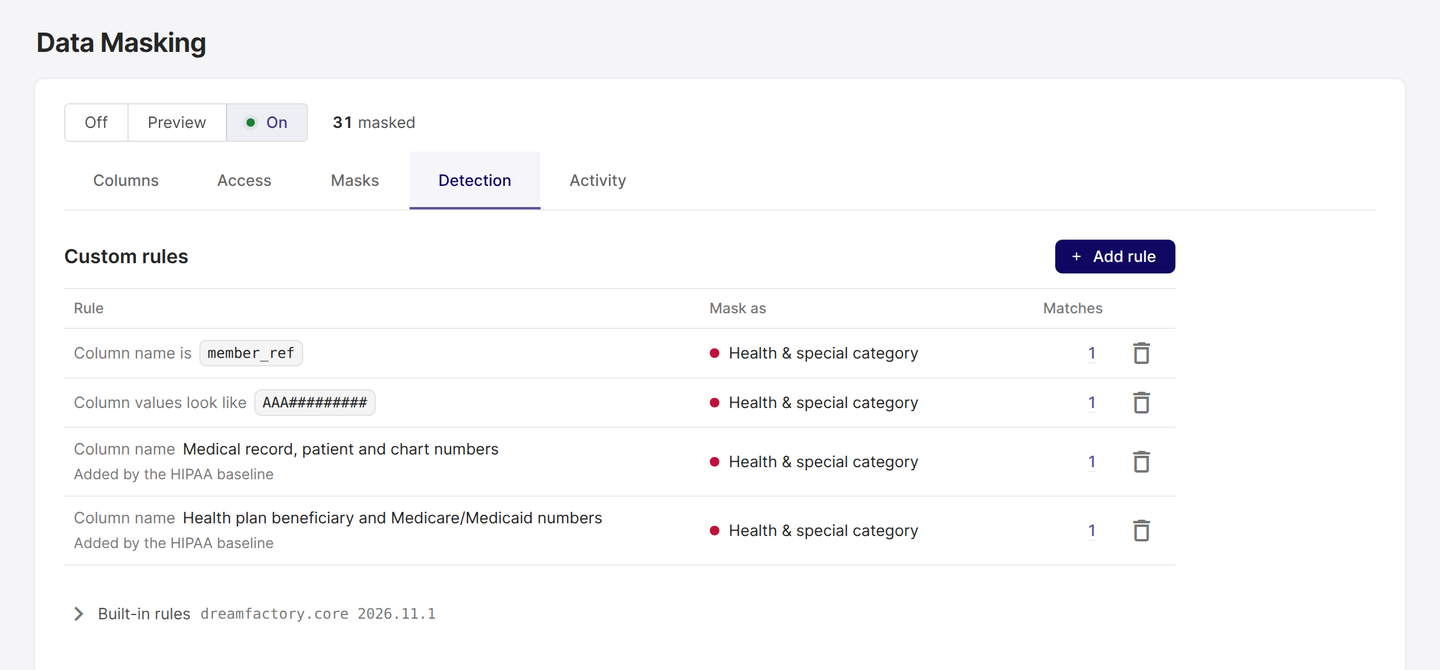
In the example, applying HIPAA added "Medical record, patient and chart numbers" and "Health plan beneficiary and Medicare/Medicaid numbers". The second one masked an insurance_member_id column, and the header went from 30 masked to 31 masked.
- HIPAA adds 2 rules, PCI DSS 4, GLBA 2 and CJIS 4. GDPR, SOC 2 and ISO 27001 add none.
- Baselines add name rules only, so their rules apply at once.
- They behave like your own rules: they only add masking, and you can delete them. Deleting one makes that baseline's Apply offer to add it again ("Add a detection rule: ... are ...").
- Stop tracking a baseline keeps its rules.
See Compliance baselines.
Delete a rule
Click the trash icon on the rule. The Delete rule? dialog names the rule. If the rule masked columns, a second line says "N columns it masked stay masked."
| Button | What happens |
|---|---|
| Cancel | Nothing changes. |
| Delete rule | Deletes the rule. The columns it masked stay masked. The toast reads "Rule deleted. N columns stay masked.", or "Rule deleted" when the rule masked nothing. |
| Delete and unmask N | Shown only when some of those columns have no other evidence that would flag them. Deletes the rule, then marks those N columns Not sensitive. The toast reads "Rule deleted. N columns unmasked." |
After the next scan, a column that stayed masked shows this evidence line: Masked as Health & special category by a detection rule that no longer matches; automatic changes never remove masking (mark it not sensitive to clear it). To unmask it later, mark it Not sensitive on the Columns tab.
Delete and unmask N can show a smaller number than "N columns it masked stay masked": columns that other evidence would still flag for review stay masked. Each column it unmasks becomes an admin decision, logged as "Marked not sensitive" with your name. Later scans and rules leave those columns alone. If some can't be unmasked, the toast reads "Rule deleted. Unmasked N of M columns."
Deleting a rule is logged as "Deleted a column name rule for ..." or "Deleted a value rule for ...".
Rules over the API
The admin app uses the System API. Calls need a full system administrator's session. AI and MCP sessions get 403 AI sessions cannot change Data Masking settings. on any change, and on POST /rule/test too. Every backslash in a pattern is doubled inside JSON.
Add a rule:
curl -X POST "https://your-dreamfactory-instance.com/api/v2/system/data_masking/rule" \
  -H "X-DreamFactory-Session-Token: <admin session token>" \
  -H "Content-Type: application/json" \
  -d '{"match": "value", "pattern": "^\\p{L}{3}\\d{9}$", "class": "special_category"}'
{
  "id": 11,
  "match": "value",
  "pattern": "^\\p{L}{3}\\d{9}$",
  "class": "special_category",
  "source": "admin",
  "matches": 0,
  "scan_started": true
}
match is name or value. class is a class id such as special_category, bank_account, username or ip_address (see Classes and mask formats). scan_started is true when adding a value rule started a scan, or queued one behind a running scan.
Test a pattern before you add it, as the dialog's preview does:
curl -X POST "https://your-dreamfactory-instance.com/api/v2/system/data_masking/rule/test" \
  -H "X-DreamFactory-Session-Token: <admin session token>" \
  -H "Content-Type: application/json" \
  -d '{"match": "name", "pattern": "^member_ref$"}'
{"matches": [{"id": "billing.claims.member_ref"}], "partial": false}
partial is true when a value test ran out of time budget, couldn't read a database or skipped a warehouse.
Delete a rule by its id. The answer is {"id": 11}:
curl -X DELETE "https://your-dreamfactory-instance.com/api/v2/system/data_masking/rule/11" \
  -H "X-DreamFactory-Session-Token: <admin session token>"
GET /api/v2/system/data_masking/rule lists the rules with their matches. Rules a baseline added have source set to baseline:hipaa (or another baseline id) and a title. See the API and CLI reference for every field and error.
Cookbook
Each recipe gives the sentence to build, the pattern it sends, the class, and what apps get with the class's default format. Always read the live preview before you click Add rule: it lists the columns the rule will mask.
Payer member references (health insurance)
Values such as XKP482019374 in billing.claims.member_ref. This is the tutorial above.
- Column name is
member_refsends^member_ref$, class Health & special category. - Column values look like
XKP482019374(chipAAA#########) sends^\p{L}{3}\d{9}$, class Health & special category. - Apps get
••••••••.
The name rule works at once. The value rule follows the references into other columns at the next scan. It also matches any other column where at least half of the sampled values are three letters and nine digits, so check the preview list.
Medical record numbers under your own names (healthcare)
The HIPAA baseline's rule "Medical record, patient and chart numbers" covers common names such as mrn, medical_record_number, patient_no and chart_number. EHR exports often add a prefix, as in epic_mrn or legacy_mrn.
- Column name ends with
_mrnsends_mrn$, class Health & special category. - It matches
epic_mrnandEPIC_MRN, but notmrn_date. - Apps get
••••••••.
Employee badge numbers (HR)
Values such as EMP-004211, in columns with many different names.
- Column values start with
EMP-sends^EMP-, class Username. - Apps get a token,
USER_followed by 8 hex characters (for exampleUSER_a497b457).
Use start with, not look like: look like would turn EMP into AAA and match any three letters. Username is an Identity class whose default format, Token, gives the same badge the same token in every table, so joins on the masked value still work.
Internal account numbers (banking)
Values such as ACCT-00012345.
- Column values start with
ACCT-sends^ACCT-, class Bank account. - Apps get the last 4 characters:
••••-••••2345.
The GLBA baseline's rule "Account and loan numbers" covers common column names such as account_number, acct_no and loan_number. You don't need a rule for IBANs: the built-in Bank account detector checks the IBAN checksum.
ACH routing and account pairs (payments)
Values such as 123456789:000123456789: a 9-digit routing number, a colon, then an account number of 4 to 17 digits. Because the length varies, look like, which fixes the length, doesn't fit.
- Column values match regex
^\d{9}:\d{4,17}$, class Bank account. - Apps get
•••••••••:••••••••6789.
Case numbers with a literal # (justice)
Values such as CASE#2024-00017. look like turns # into a digit slot: the example becomes AAAA#####-#####, which sends ^\p{L}{4}\d{5}-\d{5}$ and never matches the # in the data.
- Column values match regex
^CASE#\d{4}-\d{5}$, class Health & special category, the class the CJIS baseline gives case, incident and citation numbers. - Apps get
••••••••.
The same applies to any value with a literal #, such as the invoice reference INV#00012: use ^INV#\d{5}$.
IP address lists under an unhelpful name (any sector)
A column named hops holds lists such as 203.0.113.7, 198.51.100.4. Data Masking detects lists of IP addresses only in columns whose names suggest IP addresses, such as x_forwarded_for or client_ip. Under other names they stay not sensitive, to keep false positives down.
- Column name is
hopssends^hops$, class IP address. - Apps get one token for the whole list,
IP_followed by 8 hex characters.
Things to know
A name rule such as Column name contains id with a Restricted class masks every key column with "id" in its name. In mode On, callers who get masked values can no longer read those tables by id: GET /_table/{table}/{id} answers 404. Prefer is with exact names, and check the preview for key columns. See What changes for apps.
- Contains matches inside words. Column name contains
dobmatchespatient_dob, and alsoadobe_customer_id. - Don't type real values with contain or start with. Literal terms are stored as typed and show in the rules list and the Activity log. look like stores only the shape.
- Value rules need volume. A value rule masks a column only when at least 3 sampled values and at least half of its non-null sample match. For small tables, use a name rule or decide the column by hand.
- A new value rule shows 0 matches until its scan finishes. Follow the scan with the spinner in Matches, or with
php artisan df:masking status. - Rules apply in every mode. They change how columns are classified. Values are masked only in mode On. In Preview, a rule's effect shows as "Would mask" rows on the Activity tab.
- Rules are instance-wide. A name rule applies to columns of that name in every covered database. You can't limit a rule to one database or table.
- New columns get rules at their scan. Until a new column is scanned, it is classified from its name only, and custom rules don't apply to it yet. In mode On, new text columns are span-masked meanwhile.
- Rules are not part of package export. Data Masking settings, rules included, don't travel in a DreamFactory package. Add the rules again, or apply the same baseline, on the target instance.
Related
- Review columns: decide single columns, read the evidence, and use Scan now.
- Classes and mask formats: the 23 classes, their tiers and their formats.
- Activity log: the rows rules and their scans write.
- Compliance baselines: baselines that add rules for you.
- API and CLI reference: every
system/data_maskingendpoint.