Who sees real values
When masking is On, every caller gets masked values until you give them access to real values. That includes admins, and it includes you. The Access tab on Security > Data Masking decides who sees real values: admins, roles, and AI and MCP sessions.
Access only matters in mode On. In Preview and Off, every caller gets real values.
Real-value access never widens what a caller can reach. Roles still decide which services, tables and verbs a caller can use (see Role-Based Access). Data Masking decides which values that caller sees in the columns it can already read.
Quick reference
| Concept | Description |
|---|---|
| Admin UI path | Security > Data Masking, Access tab |
| Default | Everyone masked: Admins No one, AI and MCP sessions Always masked, every role off |
| Admin grants | Per admin: 1 hour, 8 hours (the default), 24 hours, 7 days or Until turned off |
| Role scopes | All classes or All except restricted (the default) |
| Who can loosen | The super admin, or an operator with shell access (php artisan df:masking) |
| Who can tighten | Any full system admin |
| REST API | GET and PATCH /api/v2/system/data_masking/access (full system admins only) |
| CLI | php artisan df:masking grant, revoke and mode |
| Saving | Each change in the tab saves on its own. There is no Save button. |
Who gets what
| Caller | Default in mode On | How to give real values |
|---|---|---|
| Admins (full system admins) | Masked, in the API and in the admin app, Data Explorer included | Set Admins to Selected and give a time-limited grant per admin, or choose All admins |
| Roles (users, and apps that call with an API key, through their role) | Masked | Turn the role on with All classes or All except restricted |
| AI and MCP sessions | Always masked | Choose Same as admins: each session then gets what its identity would get |
| The super admin | Masked like any other admin until they have a grant | Check your own name under Selected, like any admin. Being super admin decides who may loosen access, not what you see |
Callers without a session (scheduler tasks without a run-as app, queue workers, MQTT and AMQP listeners, php artisan commands that call the API) | Always masked | Give the scheduler task a run-as app whose role has real-value access |
"Admins" here means full system admins: active system admins with no role. Admins that df-compliance restricts with a role are treated as users of that role. They get that role's real-value access, and they cannot open the Data Masking pages.
The Access tab
Open Security > Data Masking and select the Access tab. Its card is titled "Who sees real values" and has three rows: Admins, AI and MCP sessions and Roles.
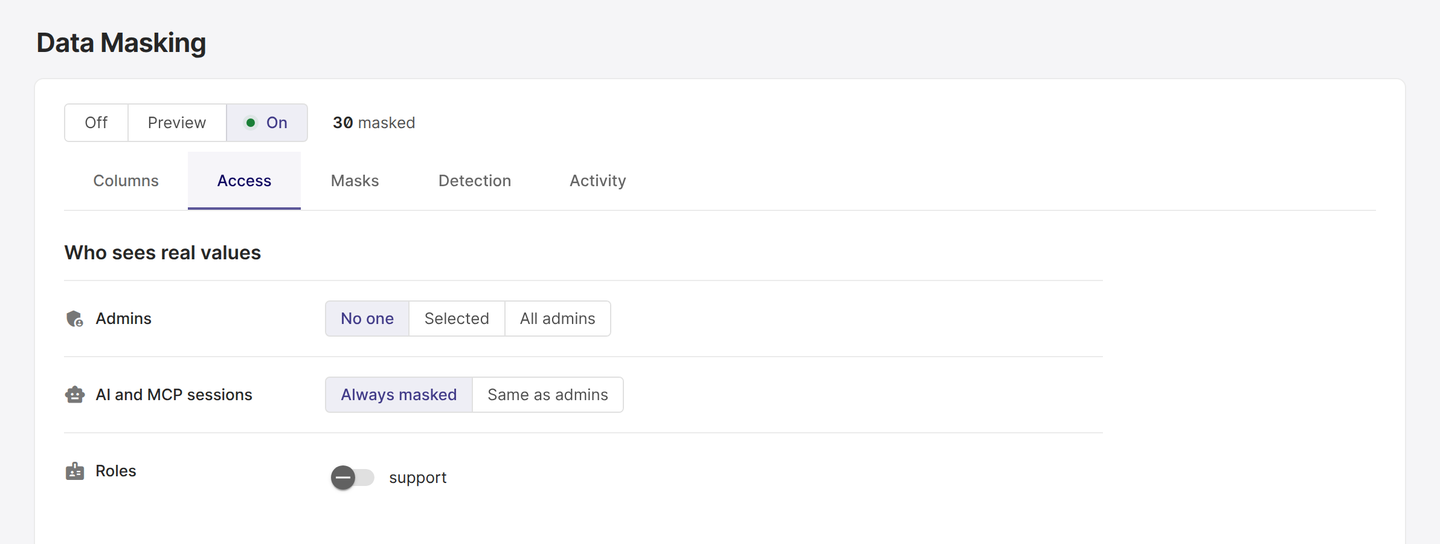
Admins
Admins has three choices:
- No one: every admin gets masked values. This is the default.
- Selected: only admins with an unexpired grant see real values.
- All admins: every full system admin sees real values, with no time limit.
With Selected, a list of every full system admin appears, with (you) next to your own name. Check an admin to give them a grant. A new grant lasts 8 hours. To change it, pick another duration from the list next to the name: 1 hour, 8 hours, 24 hours, 7 days or Until turned off. Picking a duration restarts the clock from now.
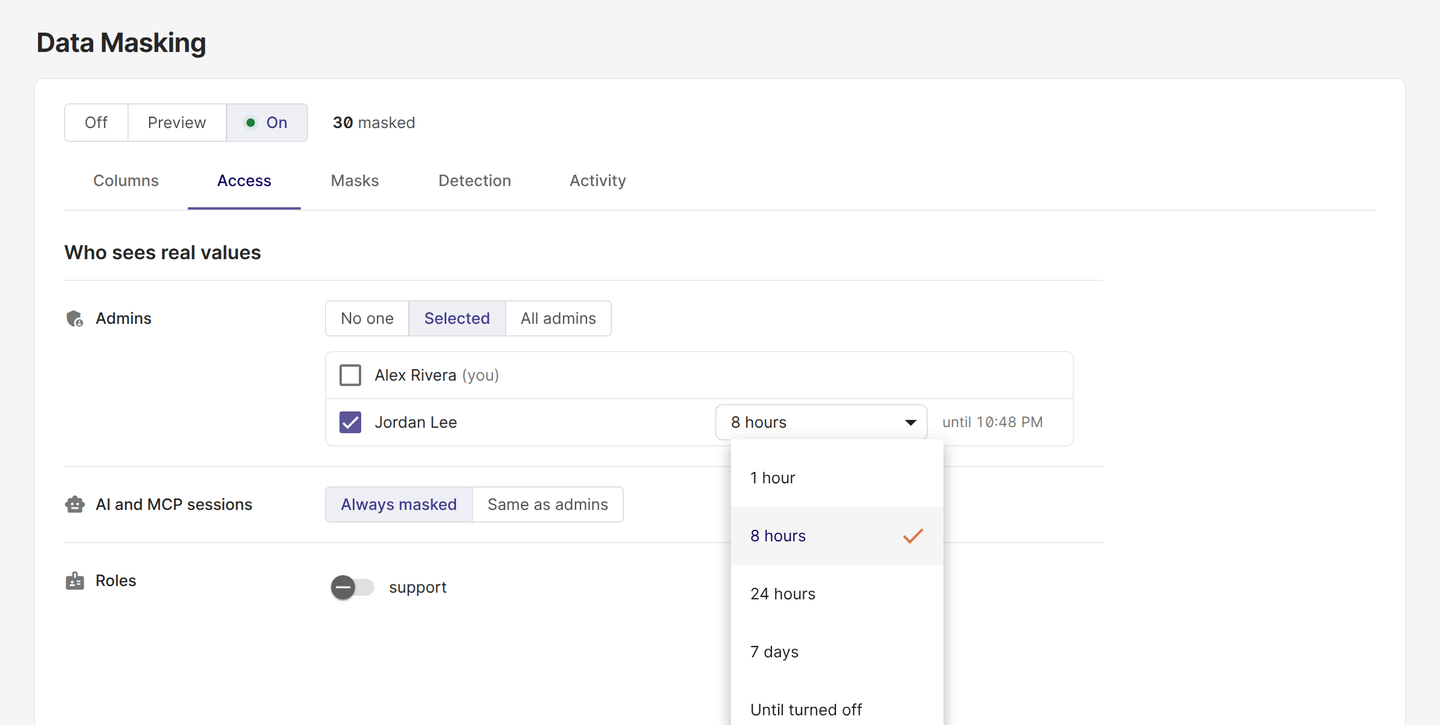
The "until" text next to the list shows when the grant ends: a clock time when it ends within a day, a date otherwise. The list itself shows the shortest preset that still covers the time left, so trust the "until" text for the real end. Uncheck an admin to end their grant at once.
Grant ends are checked on every request, so a grant stops working the moment it expires. Expired grants disappear from the tab.
Choosing All admins asks for confirmation first. The dialog Give every admin real values? says "All admins will see real values in N columns.", where N counts the masked columns and the columns still to review. Click Give access to confirm, or Cancel to leave the setting as it was.
When you track a Compliance baseline that limits grant length, durations longer than the limit show a marker such as Exceeds HIPAA in the list, and the duration box shows a warning icon. HIPAA, PCI DSS and CJIS limit grants to 8 hours. GLBA, GDPR, SOC 2 and ISO 27001 limit them to 24 hours. The marker is only a warning: you can still save the longer grant. The baseline's grant check then fails, and applying the baseline again shortens the grant to its limit.
AI and MCP sessions
AI and MCP sessions has two choices:
- Always masked: AI and MCP sessions get masked values whoever they run as. This is the default.
- Same as admins: each AI session gets what its identity would get. A session that runs as an admin sees real values only while that admin has real-value access. A session that runs with an app's API key gets what that app's role gets.
Choosing Same as admins asks for confirmation: Let AI sessions see real values? with the message "AI and MCP sessions will see real values wherever their admin does." Click Allow to confirm. See AI and MCP sessions for how DreamFactory recognizes them.
Roles
Roles lists every role with a toggle. Turn a role on to give its users and API keys real values, then choose its scope:
- All classes: real values in every masked column.
- All except restricted: real values everywhere except columns of the Restricted tier (National ID, Tax ID, Passport number, Driver's license, Card number, Card security code, Bank account, Credential, Health & special category). This is the default scope.
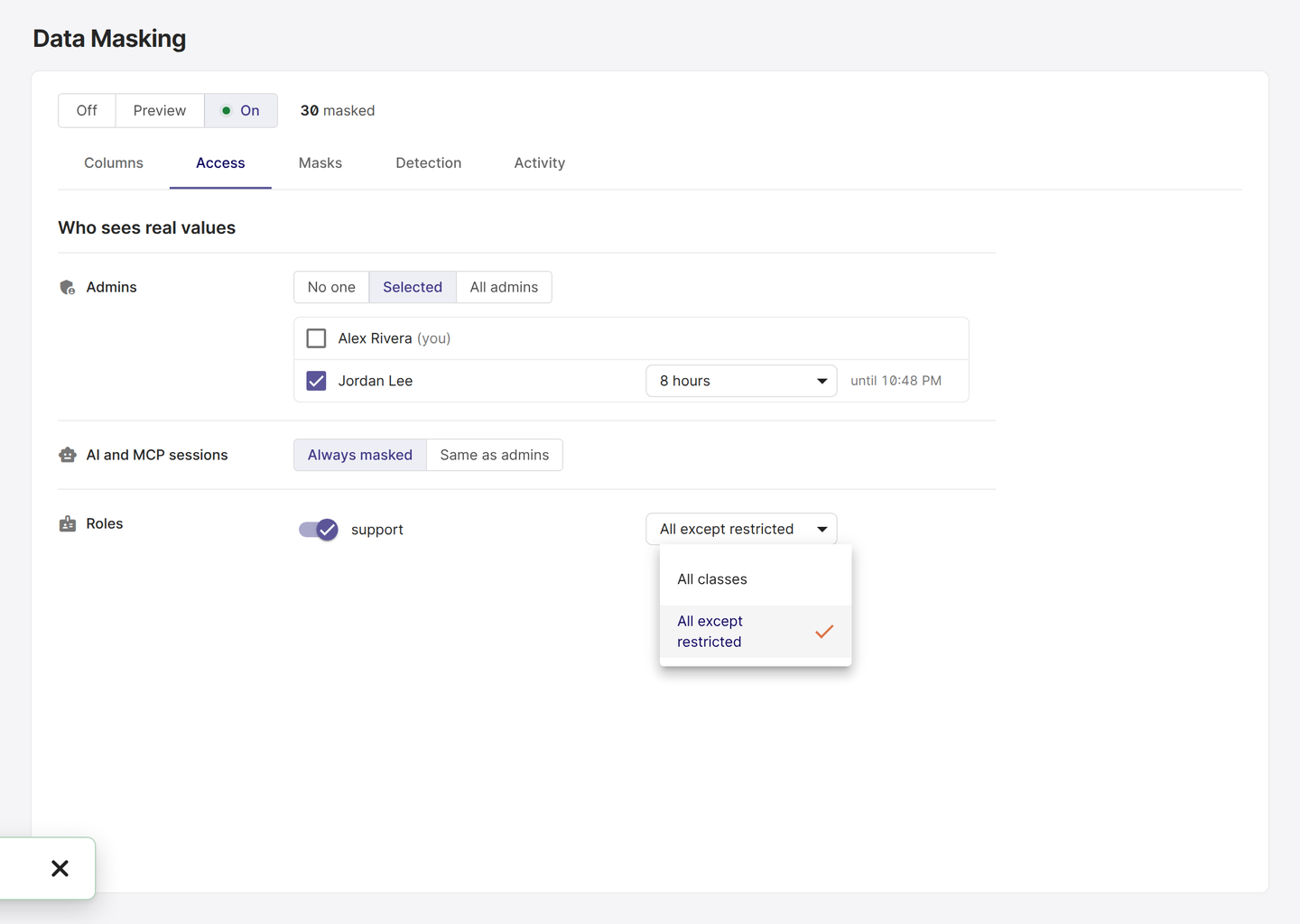
All except restricted also keeps masked any masked or to-review column that has no class, such as a column still to review. Data Masking treats such a column as restricted until you choose a class for it. See Review columns.
If the instance has no roles, the row reads "No roles".
Saving and conflicts
Every change saves on its own, one at a time, and the toast "Access updated" confirms it. If the server refuses a change, the setting goes back to what it was and the toast shows the server's reason.
If someone else changed access since you opened the tab (another admin, the command line, or a grant that expired), the toast reads "Access settings changed elsewhere. Showing the latest." The tab reloads and drops your pending changes. Make them again on the fresh view.
Each change is logged on the Activity tab under Access, for example "Jordan Lee was given real values for 8 hours" or "support is masked again". See Activity log.
Tutorial: give a role and a second admin real values
Acme Health runs masking On. The support-portal app calls the API with the support role, and support staff need patient names and contact details, but never SSNs or diagnosis codes. Jordan Lee, a second admin, needs real values for one shift.
You need:
- To be signed in as the super admin. In this example that is Alex Rivera. See The super admin.
- The
support-portalapp's API key, to check the result.
1. Check what the app gets now
Call the API with the app's key:
curl -i "https://your-dreamfactory-instance.com/api/v2/patients/_table/patients/2?fields=id,first_name,email,ssn,date_of_birth,notes" \
  -H "X-DreamFactory-API-Key: YOUR_APP_API_KEY"
Every sensitive field comes back masked, and the response header lists them (other headers are left out here):
HTTP/1.1 200 OK
X-DreamFactory-Masked-Fields: first_name, email, ssn, date_of_birth, notes
X-DreamFactory-Trace-Id: 02f30114-d073-41de-b449-8e0cea288a46

{"id":2,"first_name":"NAME_87183da6","email":"EMAIL_e4a7daa0","ssn":"\u2022\u2022\u2022\u2022\u2022\u2022\u2022\u2022","date_of_birth":"1979-\u2022\u2022-\u2022\u2022","notes":"Send lab results to \u2022\u2022\u2022\u2022\u2022\u2022."}
\u2022 is how JSON writes the bullet character, so a JSON parser reads ssn as ••••••••.
2. Give Jordan Lee 8 hours
- Open Security > Data Masking and select the Access tab.
- Under Admins, click Selected. The list of admins appears.
- Check Jordan Lee. The grant starts at 8 hours, and "until" shows when it ends.
Jordan now sees real values in the API and in the admin app until the grant ends. Alex, who is not checked, still gets masked values.
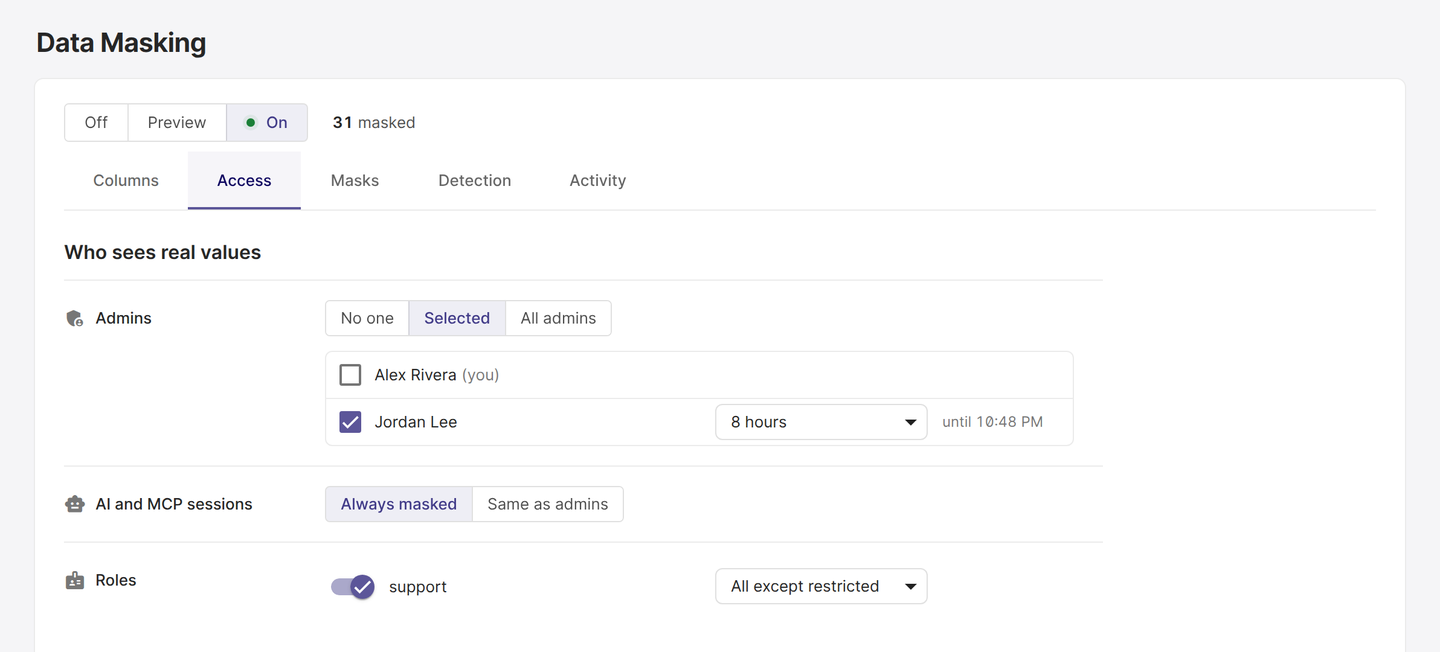
3. Give the support role real values except restricted
- Under Roles, turn on the toggle next to
support. - Leave the scope on All except restricted.
The tab now looks like this:
4. Check the app again
Send the same request again with the app's key, without notes this time:
curl -i "https://your-dreamfactory-instance.com/api/v2/patients/_table/patients/2?fields=id,first_name,email,ssn,date_of_birth" \
  -H "X-DreamFactory-API-Key: YOUR_APP_API_KEY"
HTTP/1.1 200 OK
X-DreamFactory-Masked-Fields: ssn

{"id":2,"first_name":"Marcus","email":"marcus.chen@example.org","ssn":"\u2022\u2022\u2022\u2022\u2022\u2022\u2022\u2022","date_of_birth":"1979-11-02"}
The name, email and date of birth are real now. ssn is a National ID, which is in the Restricted tier, so it stays masked and is the only field left in X-DreamFactory-Masked-Fields.
5. Check the log
Open the Activity tab and select Access. The three changes appear with Alex Rivera as the actor: "Admin access set to selected", "Jordan Lee was given real values for 8 hours" and "support now sees real values (all except restricted)".
The super admin
The super admin is the only admin who can loosen access. Any full system admin can tighten it.
The super admin is the df-compliance root admin. If df-compliance is not installed, or no root admin is designated, every full system admin counts as the super admin. So on many instances every admin can loosen access until you designate one. An AI session is never the super admin, whoever it runs as.
| Setting | Loosening (super admin only) | Tightening (any full system admin) |
|---|---|---|
| Admins | Widen from No one to Selected to All admins | Narrow the choice |
| Grants | Give a new grant, or pick a duration that ends later | Remove any admin's grant, not only your own, or pick a duration that ends sooner |
| AI and MCP sessions | Switch to Same as admins | Switch back to Always masked |
| Roles | Turn a role on, or widen it to All classes | Turn a role off, or narrow it to All except restricted |
| Masking mode | Lower it from On to Preview or Off | Raise it, or switch between Preview and Off |
Other admins see the lock line "Only the super admin can give access." at the top of the Access tab, and the loosening choices are disabled. While masking is On they also see "Only the super admin can lower the masking mode." above the tabs, with Off and Preview disabled.
The server applies the same rule, whatever client sends the change. A non-super admin who sends a loosening change gets 403 Only the super admin can give access. If one request mixes loosening and tightening, the whole request is refused. Lowering the mode from On gets 403 Only the super admin can lower the masking mode.
Designate a super admin
Designate the super admin with the df-compliance command, on the DreamFactory server:
php artisan df:root_admin --admin_id=<id>
Without --admin_id, the command lists the admins and asks for an id. The Compliance baselines check for this setting reads "A super admin is designated: only they can give access to real values or lower the masking mode." when it passes.
Any full system admin can mark a column Not sensitive, and can switch a class to a less strict format among those allowed for it, for example National ID from Redact to Last 4. Neither needs the super admin. Both are logged on the Activity tab. Keep the number of full system admins small. See Review columns and Classes and mask formats.
Who can change these settings
Only full system admins can view or change Data Masking settings, in the admin app and through system/data_masking. Role-based access does not change this: a role or API key that was given access to the system service gets 403 with one of these messages:
Only a system administrator can view Data Masking settings.Only a system administrator can change Data Masking settings.
Compliance baselines (system/security_baseline) follow the same rule, with Only a system administrator can view Compliance baselines. and Only a system administrator can change Compliance baselines. Refused changes appear on the Activity tab under Blocked.
AI and MCP sessions in detail
How DreamFactory recognizes an AI session
A request counts as an AI session when any of these is true:
- It carries an
X-DreamFactory-Trace-Idheader with any non-empty value. The DreamFactory MCP daemons send it on every call, and AI Chat's tool calls send it too. - It uses a df-agents agent key.
- It comes from AI Chat's own app and user.
These calls are not recognized as AI sessions, and get the normal access of the identity they use:
- MCP custom tools that an admin defined and that call the data API.
- Script callbacks made over HTTP.
- An LLM that drives a person's own credentials directly.
The Activity tab labels AI sessions with (AI session) after the actor, for example AI Chat (AI session).
What AI sessions can and cannot do
- They get masked values unless AI and MCP sessions is Same as admins.
- They are blocked from databases Data Masking cannot mask. While masking is On, an AI session that calls a database service Data Masking does not cover (MongoDB, Cassandra, CouchDB, DynamoDB, Salesforce and others) gets 403
Data Masking blocks AI access to services it cannot mask.Non-database services, such as files, remote web services, scripts and email, are not blocked. - They can read the settings but never change them. An AI session that runs as a full system admin can read Data Masking and Compliance settings. In every mode, including Off, an AI session that tries to change them gets 403
AI sessions cannot change Data Masking settings.orAI sessions cannot change compliance baselines.That includes starting a scan and testing a rule.
DreamFactory returns X-DreamFactory-Trace-Id on API responses for log correlation. If a gateway, proxy or SDK copies it from a response into later requests, those requests count as AI sessions. While AI and MCP sessions is Always masked, they get masked values even when their role has real-value access. While masking is On, database services Data Masking cannot cover answer 403 with Data Masking blocks AI access to services it cannot mask. This request counts as an AI session because it carries X-DreamFactory-Trace-Id. Configure non-AI clients so they don't forward this header.
Callers without a session
Some callers reach the API without a user or app session: scheduler tasks without a run-as app, queue workers, MQTT and AMQP listeners, and php artisan commands that call the API. They have no admin grant and no role, so they get masked values in every column, whatever the Access tab says.
To give a scheduled task real values:
- Create an app whose role can reach the tables the task uses, or reuse one.
- In System > Scheduler, edit the task and set Run as app (optional) to that app.
- On the Access tab, turn on that app's role with the scope the task needs.
How fast changes apply
Changes made in the Access tab, through the API or with php artisan df:masking apply to the next request. Each write bumps a policy version in the application cache, and every cached Data Masking entry is keyed on that version.
Grants and role access are also cached for DF_MASKING_ACCESS_CACHE_SECONDS seconds (default 30, minimum 1). That limit only matters for changes made outside DreamFactory, such as direct SQL on the dm_* tables.
If you run several DreamFactory nodes, they must share one cache store, such as Redis or Memcached. With a separate cache per node, the other nodes see an access change only when their cached copy expires (DF_MASKING_ACCESS_CACHE_SECONDS), and a mode change can take up to an hour. See Install and operate.
Change access with the API
GET /api/v2/system/data_masking/access returns the current settings, the admins you can grant, the roles and a version:
curl "https://your-dreamfactory-instance.com/api/v2/system/data_masking/access" \
  -H "X-DreamFactory-Session-Token: <admin session token>"
{
  "admins": {
    "mode": "none",
    "grants": [],
    "available": [
      { "admin_id": 1, "name": "Alex Rivera", "email": "alex.rivera@acmehealth.example", "you": true },
      { "admin_id": 2, "name": "Jordan Lee", "email": "jordan.lee@acmehealth.example", "you": false }
    ]
  },
  "ai": "masked",
  "roles": [
    { "role_id": 1, "name": "support", "enabled": false, "scope": "except_restricted" }
  ],
  "version": "9b1f4c2a7d3e8f605a1c"
}
PATCH the same path to change it. This request does what the tutorial did in the tab:
curl -X PATCH "https://your-dreamfactory-instance.com/api/v2/system/data_masking/access" \
  -H "X-DreamFactory-Session-Token: <super admin session token>" \
  -H "Content-Type: application/json" \
  -d '{
    "version": "9b1f4c2a7d3e8f605a1c",
    "admins": { "mode": "selected", "grants": [ { "admin_id": 2, "duration": "8h" } ] },
    "roles": [ { "role_id": 1, "enabled": true, "scope": "except_restricted" } ]
  }'
The response has the same shape as GET. Rules for the body:
- Send any of
admins,aiandroles.aiismaskedorsame_as_admins. admins.modeisnone,selectedorall. Adding grants does not change the mode, so send"mode": "selected"when you need it.admins.grantsis the complete list. An admin you leave out loses their grant. A grant withoutdurationkeeps its current end time.durationis1h,8h,24h,7dorforever, counted from now.roleslists only the roles you change.scopeisallorexcept_restricted.versionis optional. If you send it and access changed since yourGET, you get 409Access settings changed since you loaded them. Reload and try again.
See API and CLI reference for every field and error.
Recover from the command line
Anyone with shell access to the DreamFactory server is the operator: php artisan df:masking can both tighten and loosen, without the super admin. Use it when nobody who can reach the admin app can fix access, for example when the super admin is away. Run it as the web server user (often www-data). Changes are logged on the Activity tab with the actor "Command line".
# Give an admin real values (default 8h; also 1h, 24h, 7d or forever)
php artisan df:masking grant jordan.lee@acmehealth.example --for=1h

# Take one admin's grant away, or every grant
php artisan df:masking revoke jordan.lee@acmehealth.example
php artisan df:masking revoke --all

# Set the masking mode: off, preview or on
php artisan df:masking mode off

# Show the mode, grants and role access
php artisan df:masking status
What to expect:
-
grantprints, for example,jordan.lee@acmehealth.example sees real values for 1 hour (until 2026-11-16T20:48:00Z)., followed byAI and MCP sessions stay masked for this admin.when AI sessions are masked. If Admins was No one,grantalso switches it to Selected. The API does not. -
revoke --allremoves every grant, switches Admins from All admins to No one if it was set to All admins, and printsRemoved <n> grant(s). Admins are masked. -
revokewith an email printsRemoved the grant for <email>.or<email> had no grant.If Admins is All admins, it warns that every admin still sees real values. -
statusstarts with the mode and the access settings. After the tutorial above, its first lines read:Data Masking
Mode: On
AI and MCP: always masked
Admins: selected
grant jordan.lee@acmehealth.example until 2026-11-17T03:48:00Z
Role support: real values (all except restricted)
The CLI has no command for role access or for the AI setting. Change those in the Access tab or with the API.
Things to know
- Admins are masked in the admin app too. With masking On and no grant, your own Data Explorer view shows masked values. To check whether you see real values, look for your (you) row under Selected, or open a table in Data Explorer: a Masked chip appears when your view is masked.
- A grant only counts while Admins is Selected. With No one, grants have no effect. With All admins, every admin sees real values anyway.
- No one pauses grants but does not end them. Grants that have not expired apply again if Admins goes back to Selected. To end a grant, uncheck the admin or run
php artisan df:masking revoke. - Grants are for full system admins only. Admins with a role (df-compliance restricted admins) are not listed. Give their role access instead.
- The Exceeds marker does not block anything. A longer grant saves, and the baseline's grant check fails while the grant has more time left than the limit, or until the baseline is applied again.
- To see what an app gets, call the API with its key. Your own view as an admin tells you nothing about an app. Data Explorer's Copy curl builds that call for you. See What changes for apps.
Related
- What changes for apps: what masked callers get from the API in mode On
- Activity log: the record of every access change and blocked attempt
- Compliance baselines: grant limits and the super admin check
- API and CLI reference: every
system/data_maskingendpoint anddf:maskingsubcommand - Role-Based Access: which services, tables and verbs a role can reach