Get started: mask your first database
This tutorial takes one organization from no masking to masking On, with a screenshot at every step. It uses Acme Health, a fictional healthcare group. Follow along with your own databases and app.
Acme Health has connected three databases to DreamFactory: patients (labelled "Patient records", PostgreSQL), billing ("Billing", MySQL) and hr ("HR", SQL Server). The built-in db is empty. The customer support app, support-portal, reads data with an API key bound to the read-only role support. Alex Rivera is the super admin.
What you will do
- Scan your databases and see which columns Data Masking flags.
- Review the column the scan was unsure about.
- Use Preview to find the apps that will get masked values, without changing any response.
- Check what changes for those apps, then turn masking On.
- Verify the result in Data Explorer, and with curl as the app.
Before you begin
- DreamFactory Gold with the Data Masking package. If Security > Data Masking shows the upgrade page on a Gold instance, the package is not installed: contact DreamFactory support. See Data Masking for licensing.
- At least one SQL database service with tables, for example MySQL, PostgreSQL or SQL Server. The built-in
dbof a new install is empty, so it gives the scan nothing to find. - A full system administrator account, which means an admin without a role. Admins with a role cannot open Data Masking.
- An app with an API key whose role can read at least one table you will scan. You use it to see what the app gets. Here that is
support-portal. - About 15 minutes.
Any full system administrator can do every step in this tutorial. If your instance has a designated super admin and it is not you, you can still turn masking On. Only the super admin can switch it back to Preview or Off from the admin app.
Step 1: Open Data Masking
In the left sidebar, open Security, then Data Masking. You can also press Ctrl-K (Cmd-K on a Mac) and type mask.
The page opens on the Columns tab. Before the first scan it shows "No scan yet" and a Scan databases button. There is no mode switch yet: masking is Off, and the switch appears once a scan has found columns.
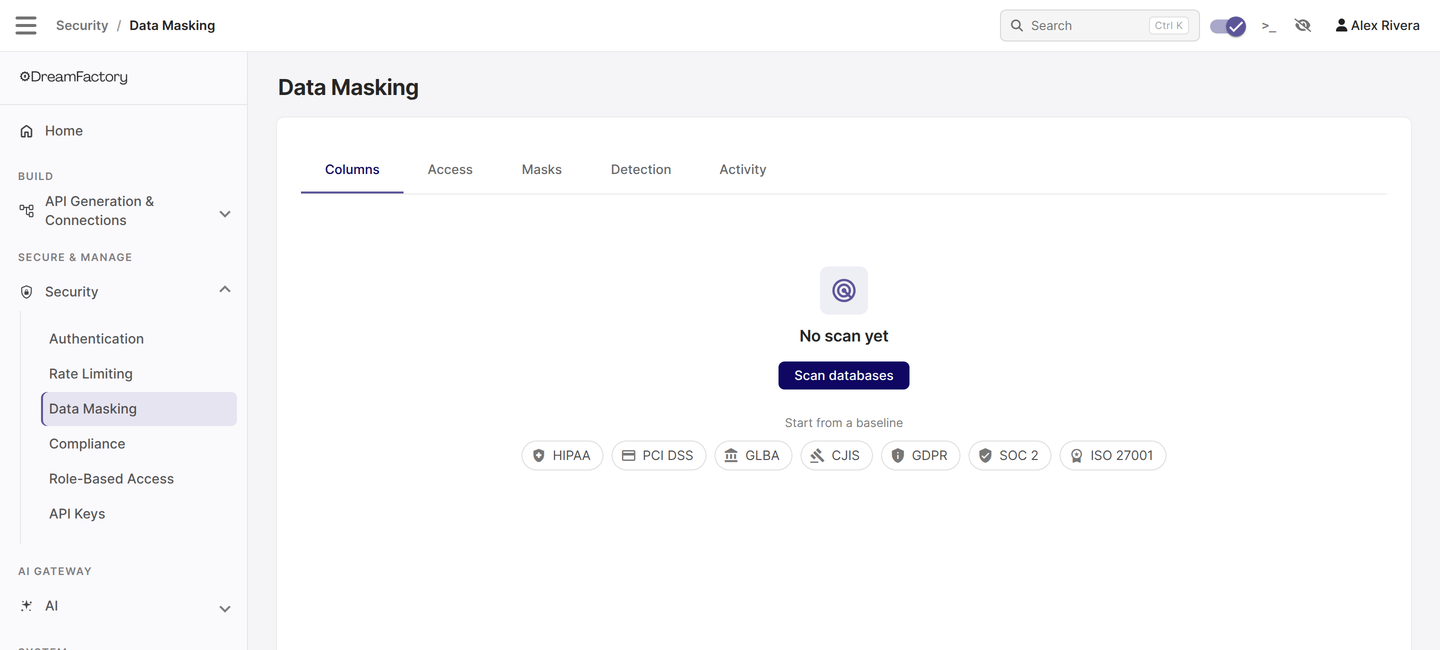
The chips under "Start from a baseline" open Security > Compliance with that baseline selected. They change nothing by themselves. A baseline is a preset of settings and detection rules for a framework such as HIPAA, with a live checklist. You can apply one now or later. See Compliance baselines.
If the page shows something other than "No scan yet":
- "No SQL databases yet" with Add a database: no SQL database service exists. Add one, then come back.
- "No tables to scan": your SQL services have no tables, like the built-in
dbof a new install. Add a database that has tables.
Step 2: Scan your databases
Click Scan databases. The Columns tab shows the scan's progress.
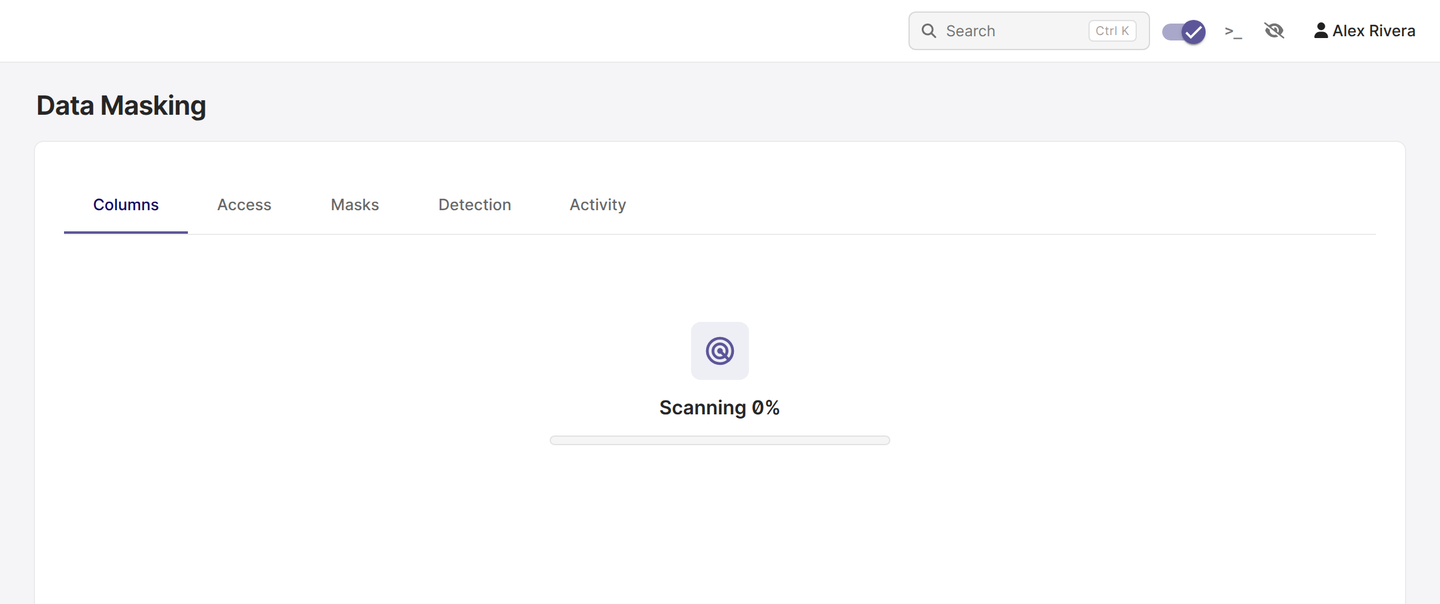
The scan runs on the server, so you can leave the page while it works. A typical database takes a few seconds. The scan:
- reads every table and column name of each SQL database service, and samples up to 256 rows per table
- only reads: on PostgreSQL, MySQL and MariaDB, each sample read runs in a read-only transaction that is always rolled back
- stores verdicts and evidence, never the values it sampled
- classifies warehouses that bill per query, such as Snowflake, from column names only
When the scan finishes, the toast "Scan finished. Preview is on." appears. The first scan that finds columns moves masking from Off to Preview, unless someone already chose a mode. Preview does not change any API response yet.
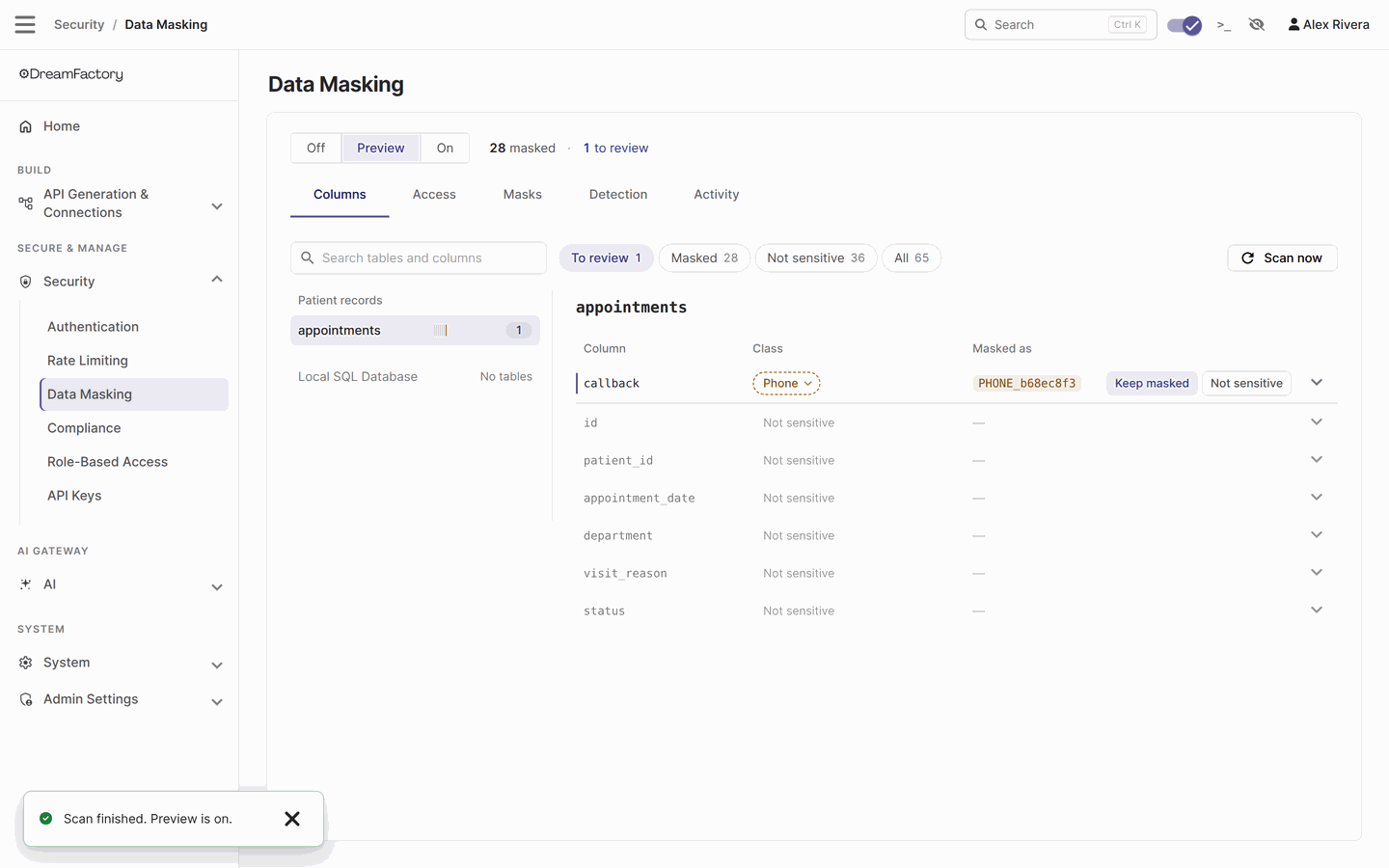
Acme Health's first scan read 65 columns in 4 databases. The filter chips split them into three groups that add up to All:
| Filter | Columns | Meaning |
|---|---|---|
| To review | 1 | Detection was unsure. The column is masked once masking is On. |
| Masked | 28 | Detected as sensitive. Masked once masking is On. |
| Not sensitive | 36 | Not masked |
| All | 65 | Every scanned column |
The list on the left groups tables by database label. A badge on a table counts its columns to review. The built-in db appears as "Local SQL Database" with "No tables".
From now on, Data Masking scans each SQL database service you create or change. A table or column that appears between scans is classified from its name when it is first requested, then scanned. To scan everything again yourself, click Scan now.
If a database could not be read, the toast names it, for example "Scan finished. Couldn't read HR.", and the table list shows it under "Couldn't scan" with a Retry button. See Troubleshooting and limits.
Step 3: Review the columns waiting for review
The Columns tab opens on To review when something is waiting. Acme Health has one column: callback in the appointments table of Patient records. The table's other columns are listed below it in grey for context; they are not part of the queue.
The callback row shows:
- Class: a dashed chip with the class detection proposed, here Phone. A dashed chip means detection was unsure.
- Masked as: an example of what a masked caller gets once masking is On, here the token
PHONE_b68ec8f3. It is one sampled value in its masked form, never the real value. - Keep masked and Not sensitive: your two quick decisions.
Click the chevron at the end of the row to see why the column was flagged.
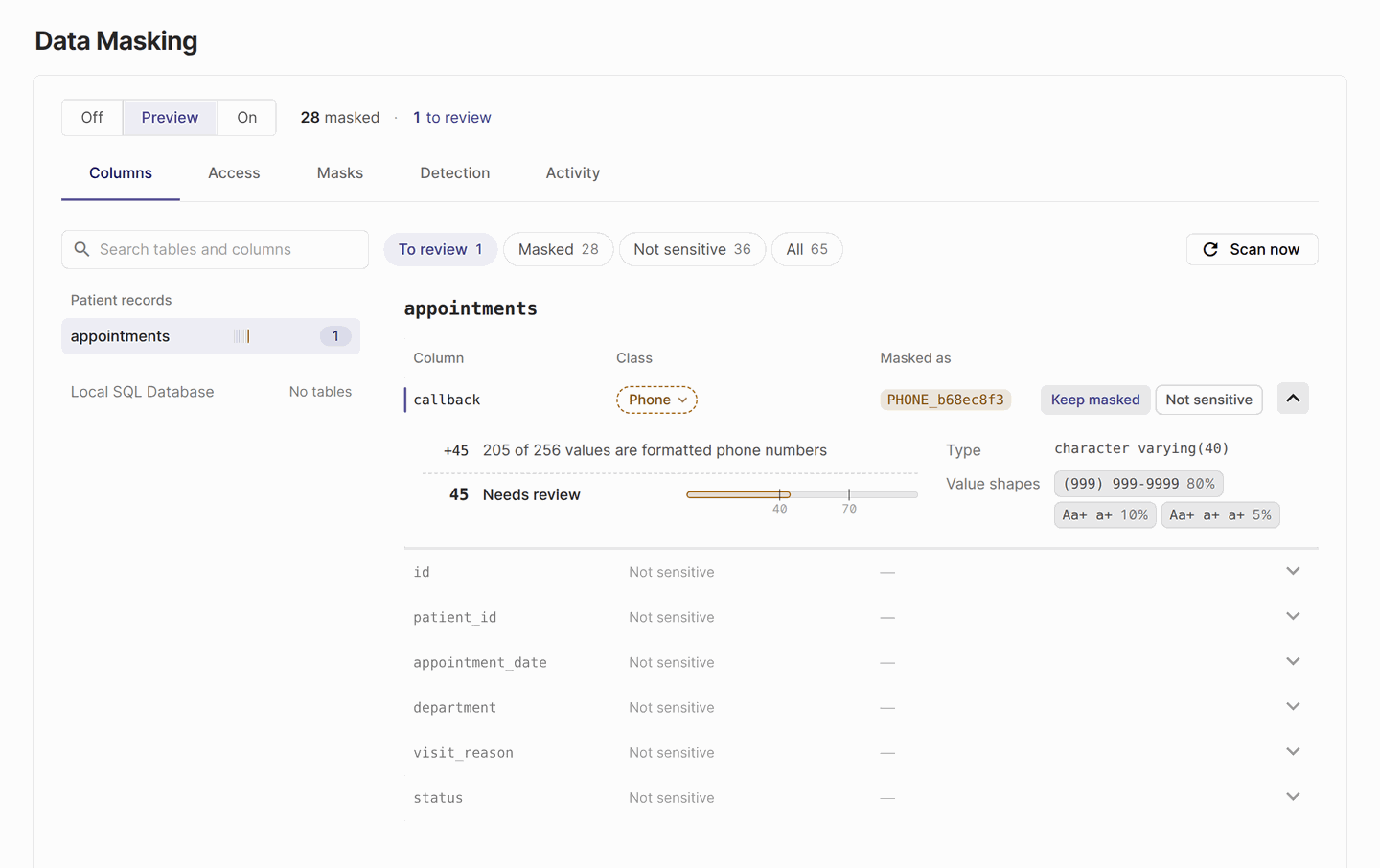
The evidence lists each signal with its points, then the total score and the verdict detection reached. The name callback says nothing about phones, so only the values scored: 205 of the 256 sampled values are formatted phone numbers, for a score of 45. Value shapes summarize the sampled values without showing them: digits appear as 9, and words as letter patterns such as Aa+.
| Score | Verdict | Once masking is On |
|---|---|---|
| 70 or more | Masked | Masked |
| 40 to 69 | Needs review, listed under To review | Masked until an admin decides |
| Below 40 | Not sensitive | Not masked |
Columns classified from their names only, such as warehouse columns, go to review from a score of 15 instead of 40. See Review columns.
Decide the column:
- Keep masked confirms the proposed class. The column moves to Masked.
- Not sensitive unmasks it. An undo toast stays on screen for 8 seconds.
- To mask it as another class, click the class chip and pick one from the list.
The callback column holds patients' callback numbers, so Alex Rivera clicks Keep masked.
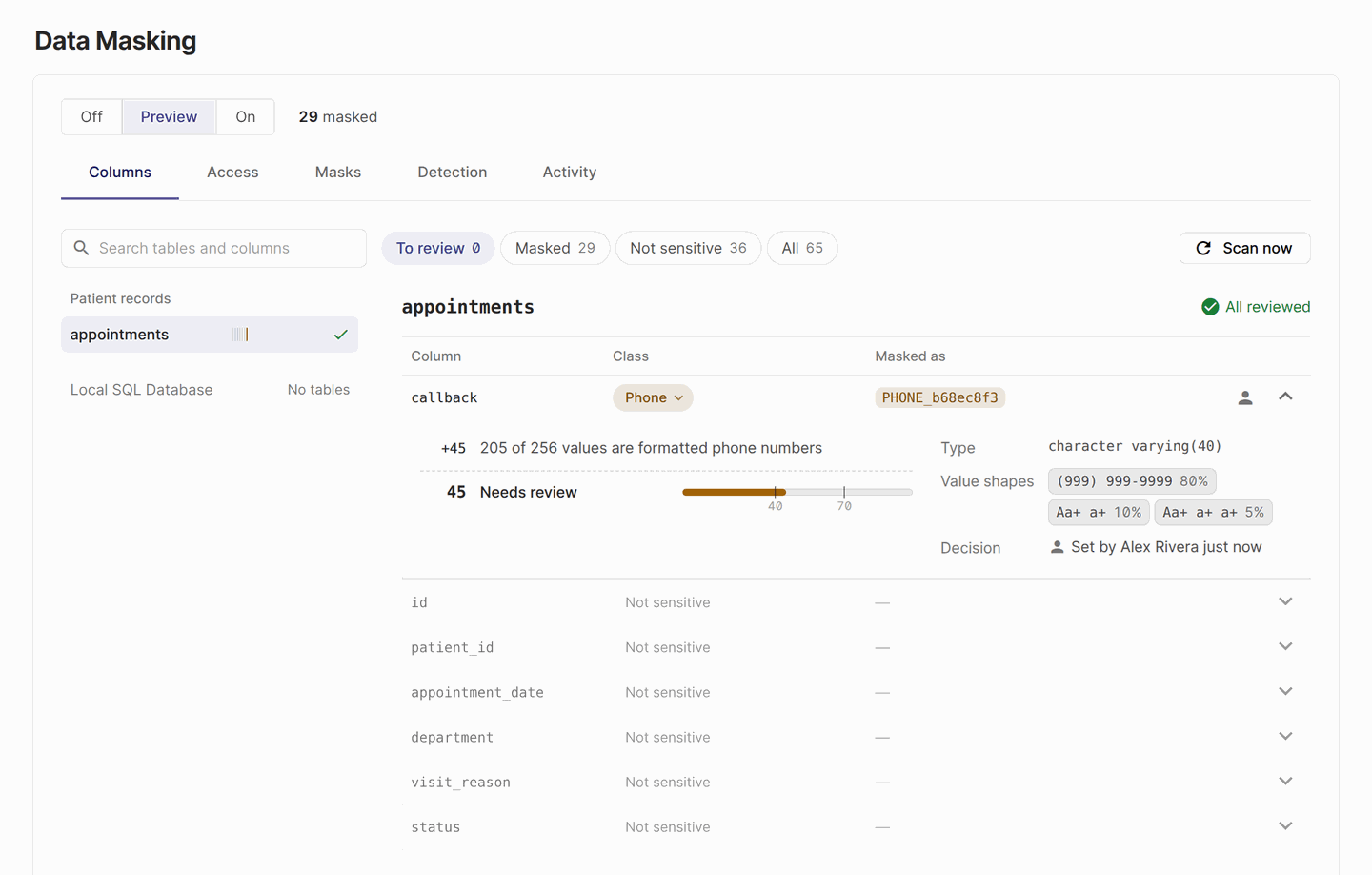
The Phone chip turns solid, the evidence records who decided and when, and the counts read 29 masked with nothing left to review. The Activity tab logs the decision as "Kept masked as Phone".
- Columns to review are masked once masking is On. Data Masking fails closed, so you can turn masking On before the queue is empty. Decide them anyway: the right class gives the right mask format.
- Your decisions stick. Rescans, custom rules and baselines only ever add masking. They never undo an admin's decision or unmask a column.
- Long queues go faster with the keyboard. In the list,
jandkmove between rows,mkeeps a column masked,nmarks it not sensitive, and Enter opens the evidence.
Step 4: Let Preview run
Preview changes no response and adds no header. It records which callers would get masked values, so you can find the apps that will be affected before anything changes for them. Data Explorer shows no Masked chip in Preview either.
Let your apps run as usual for a while. To create some traffic yourself, call a table with an app's API key (Step 7 has a curl command you can reuse), or open a table in Data Explorer. Then open the Activity tab.
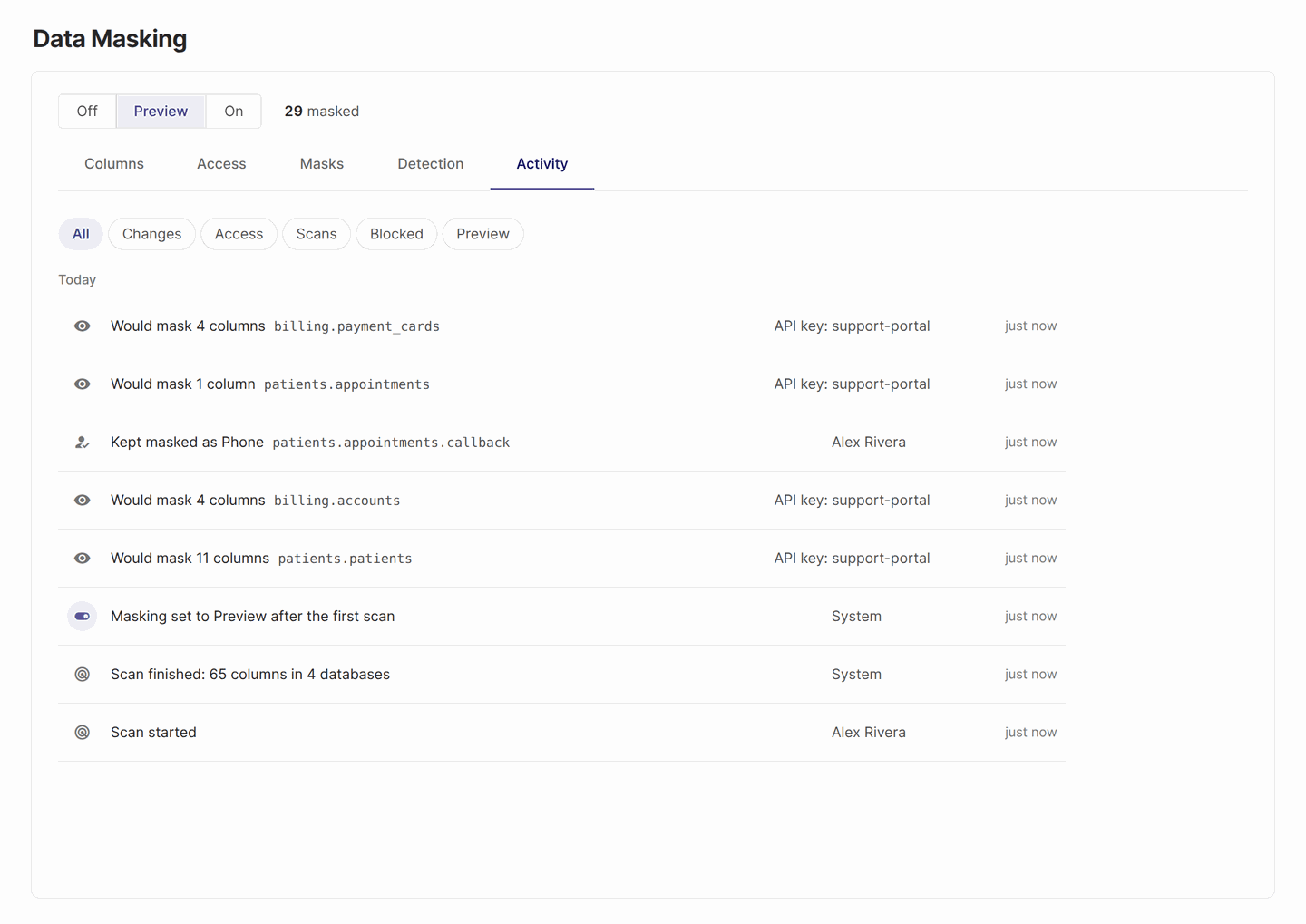
Each "Would mask N columns" row names the table and the caller, here "API key: support-portal". Data Masking writes at most one such row per caller and table per hour, and only when a response contained masked columns. Click the Preview chip to list only these rows.
Read the rows as a to-do list:
- Every caller in the list will get masked values once masking is On.
- To see which columns of a table are masked, open that table on the Columns tab under Masked.
- A caller that must keep seeing real values, such as a back-office app that shows full records, needs access before you turn masking On. See Who sees real values.
Here, support-portal reads four tables that hold masked columns.
Step 5: Check your apps before turning On
In mode On, Data Masking changes more than values. It also changes requests that could reveal a masked value. For each app in the Preview list, check whether it does any of the following.
| If the app... | In mode On... |
|---|---|
Filters or searches on a masked column, for example ssn like '123%' | The condition matches no rows, and the response is a normal 200. On Email, Phone and other identity and quasi-identifier columns, exact comparisons (=, !=, and IN with up to 25 values) still work. Restricted and Free text columns allow only IS NULL and IS NOT NULL. |
| Sorts or groups by a masked column | The sort or grouping is left out |
Looks records up by a masked key, such as ssn used as the id field | The lookup is not run. With the id in the path, the answer is 404 Record with identifier '•••' not found. |
| Saves back a record it read | Masked values sent back are treated as unchanged, so they never overwrite real data |
| Inserts a value copied from a response | 400 Masked values can't be inserted. Send real values or leave the field out. |
| Expects a number or a boolean in a masked column | It gets null, except with the Token format |
| Runs without a session: a scheduler task without a run-as app, a queue worker, an MQTT or AMQP listener | It gets masked values |
| Runs in a browser on another origin and reads the masking headers | It needs both header names listed as exposed headers in the CORS entry |
For each affected app, pick a fix:
- Change the app, for example look records up by id instead of by a masked column.
- Have the super admin give the app's role real values on the Access tab, for all classes or for all classes except restricted ones. See Who sees real values.
- If a flagged column holds no personal data, mark it Not sensitive.
What changes for apps has the full rules, the error messages and a longer checklist.
Check for columns the scan missed
Built-in detection covers common formats, not your organization's own identifiers. Open the Not sensitive filter and skim the column names.
Acme Health's billing.claims.member_ref holds payer member references such as XKP482019374. The built-in rules missed that format, so the column is listed as not sensitive. A custom rule fixes it: on the Detection tab, click Add rule, choose Column name, is and member_ref, set Mask as to Health & special category, and click Add rule. The toast "Rule added and applied." confirms it: a column name rule applies at once, without a scan. See Custom rules.
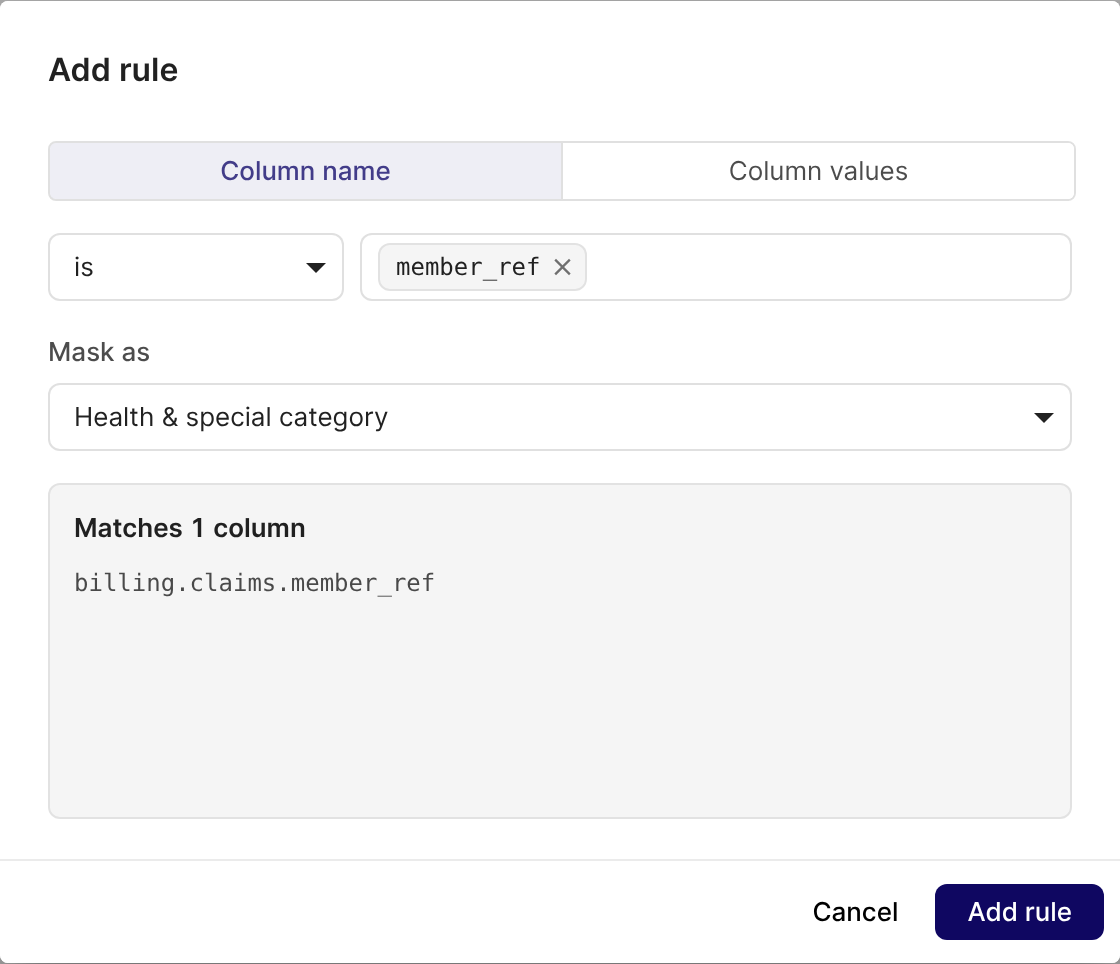
The rest of this tutorial assumes you added that rule, so 30 columns are masked.
Step 6: Turn masking On
At the top of the page, click On in the mode switch. A dialog asks you to confirm.
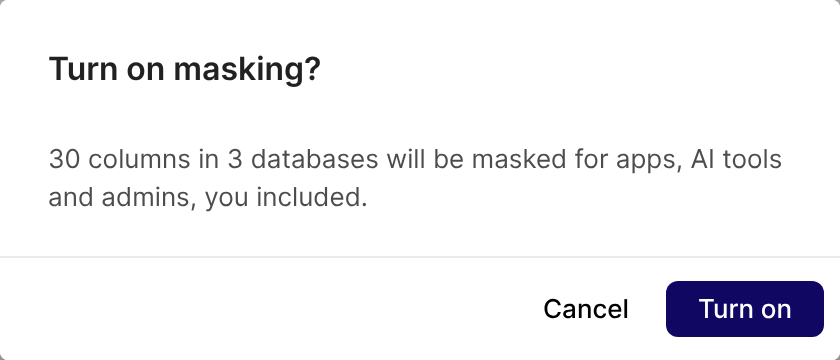
The count includes columns still to review, and the dialog adds "N still to review." when there are any. It counts only databases with masked or to-review columns, so the empty built-in db is not among Acme Health's 3. Click Turn on. The toast "Masking turned on" confirms the change.
From now on, every caller without access gets masked values from covered services, admins included. "You included" means that your own view in Data Explorer and your own API calls are masked too, until the super admin gives you a grant on the Access tab. If you already have access, the dialog says "admins without access" instead. See Who sees real values.
Raising the mode is always allowed, but lowering it from On to Preview or Off needs the super admin. Other admins see "Only the super admin can lower the masking mode." and the Off and Preview options are disabled. An operator with shell access can always run php artisan df:masking mode preview. Without a designated df-compliance root admin, every full system admin is the super admin.
To back out later, the super admin clicks Preview ("Stop masking?") or Off ("Turn off masking?") and confirms. Responses then carry real values again.
Step 7: Verify what callers get
In Data Explorer
Open API Generation & Connections > Data Explorer and select a table with masked columns, here the patients table of the patients service.
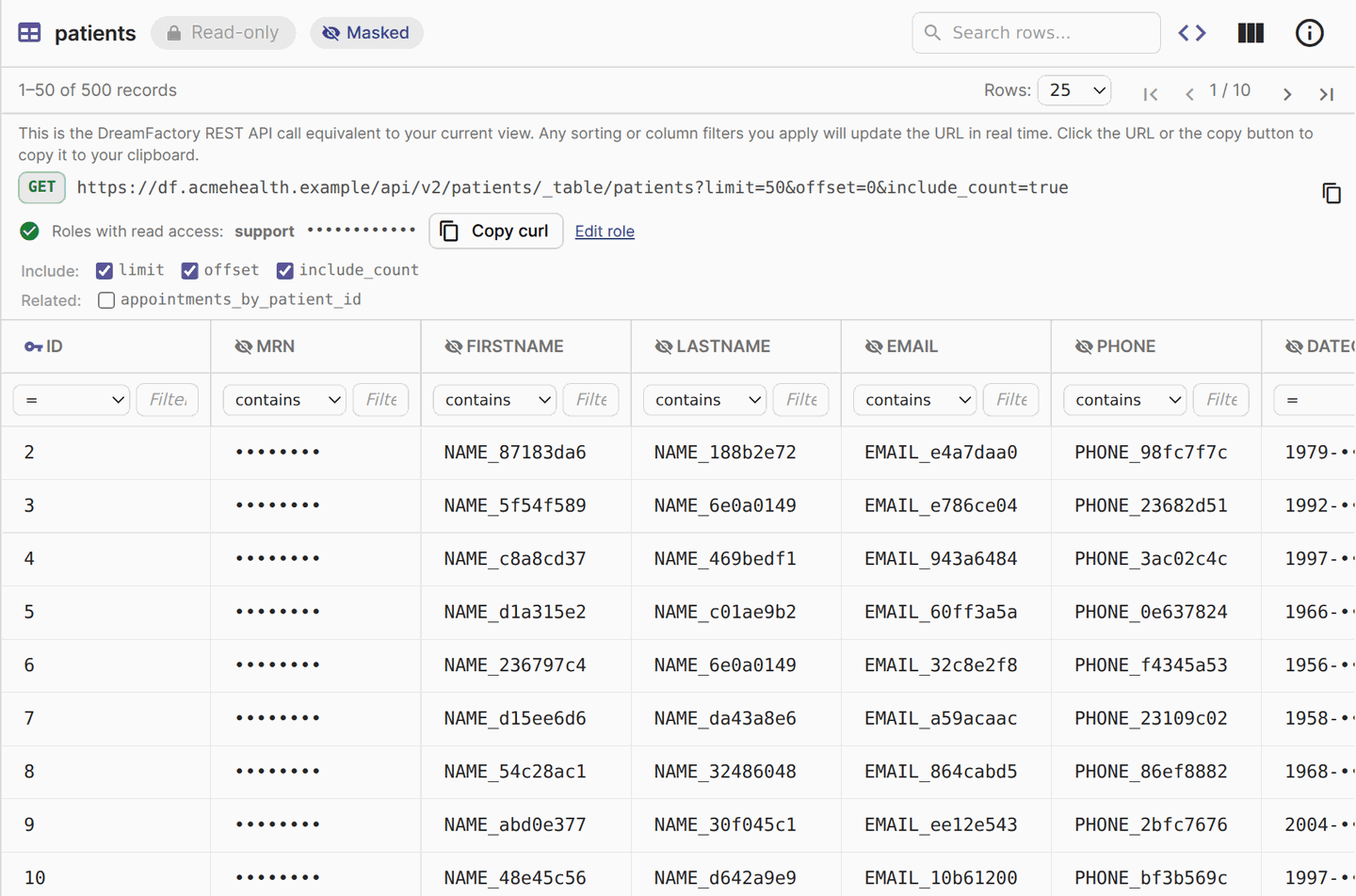
- The Masked chip appears when masking changed the response. Click it to open the Access tab.
- Each masked column has an eye-off icon in its header.
- You see masked values because admins are masked by default. Data Explorer shows you what a caller without access gets.
- Roles with read access names a role that can read this table, with its API key. Copy curl copies a curl command that sends that key in the
X-DreamFactory-API-Keyheader.
With curl, as the app
Read one record with the app's API key. The -i option prints the response headers.
curl -i "https://your-dreamfactory-instance.com/api/v2/patients/_table/patients/2?fields=id,first_name,email,ssn,date_of_birth,notes" \
  -H "X-DreamFactory-API-Key: YOUR_APP_API_KEY"
Acme Health's response (other headers left out):
HTTP/1.1 200 OK
X-DreamFactory-Masked-Fields: first_name, email, ssn, date_of_birth, notes
X-DreamFactory-Trace-Id: 02f30114-d073-41de-b449-8e0cea288a46

{"id":2,"first_name":"NAME_87183da6","email":"EMAIL_e4a7daa0","ssn":"\u2022\u2022\u2022\u2022\u2022\u2022\u2022\u2022","date_of_birth":"1979-\u2022\u2022-\u2022\u2022","notes":"Send lab results to \u2022\u2022\u2022\u2022\u2022\u2022."}
\u2022 is the JSON escape for the bullet character • (U+2022). A JSON parser reads the body as:
| Field | Class | Format | Value |
|---|---|---|---|
id | Not sensitive | none | 2 |
first_name | Person name | Token | NAME_87183da6 |
email | Token | EMAIL_e4a7daa0 | |
ssn | National ID | Redact | •••••••• |
date_of_birth | Date of birth | Year only | 1979-••-•• |
notes | Free text with personal data | Detected spans | Send lab results to ••••••. |
X-DreamFactory-Masked-Fieldslists the masked fields present in this response.idis not masked, so it is not listed.- A token is stable on this instance: the same value always gives the same token, so an app can still match or group records by it in its own code. DreamFactory itself still ignores a sort or grouping on the masked column.
- Redact always returns 8 bullets, whatever the length of the value.
- Detected spans hide only the personal data found inside the text and keep the rest.
Now send a filter and a sort on masked columns:
curl -i -G "https://your-dreamfactory-instance.com/api/v2/patients/_table/patients" \
  -H "X-DreamFactory-API-Key: YOUR_APP_API_KEY" \
  --data-urlencode "fields=id" \
  --data-urlencode "filter=ssn like '123%'" \
  --data-urlencode "order=email"
HTTP/1.1 200 OK
X-DreamFactory-Masking-Rewrites: filter:ssn, order:email
X-DreamFactory-Trace-Id: 36c613bf-98c2-40dd-8fc2-eac5f4371584

{"resource":[]}
The condition on ssn matched no rows, and the sort on email was left out. The status is still 200. X-DreamFactory-Masking-Rewrites tells the app which parts of its request changed. See What changes for apps for every rewrite item.
DreamFactory returns X-DreamFactory-Trace-Id on every response. A request that carries it counts as an AI session: masked by default, and while masking is On, refused (403) by database services that Data Masking cannot cover. If a gateway or SDK copies response headers into later requests, make sure it drops this one.
Do the same from the command line
Operators can run the same flow with php artisan df:masking from the DreamFactory directory (/opt/dreamfactory on a standard install). The command line can tighten and loosen everything, and its changes appear on the Activity tab as "Command line".
1. Set up and scan. setup creates or updates the Data Masking tables, scans every active SQL database service and can apply a baseline. It is safe to re-run.
php artisan df:masking setup
On Acme Health, the output ends with:
1/4 Tables ready.
2/4 Scanning 4 database service(s): billing, db, hr, patients...
Scan finished: 65 columns in 4 databases (28 masked, 1 to review, 36 not sensitive).
Mode: Preview
3/4 No baseline requested (see: php artisan df:masking baseline list).
4/4 Masking mode: Preview.

Next: open the admin app > Data Masking, decide the 1 column to review, then switch the mode to On.
If the tables don't exist yet, the output starts with Creating Data Masking tables... and the migration lines. In an interactive terminal, progress lines (10%, 20% and so on) also appear while the scan runs. setup scans in the foreground, so it takes longer on large databases. To apply a baseline in the same run, add --baseline=hipaa, or pci_dss, glba, cjis, gdpr, soc2 or iso27001. See Compliance baselines.
2. Review. There is no command for column decisions. Decide the columns to review in the admin app, as in Step 3, or with PATCH /api/v2/system/data_masking/column. See API and CLI reference.
3. Turn masking On.
php artisan df:masking mode on
Masking mode: On
The command does not ask for confirmation. Before a scan has found columns, it prints Scan your databases before turning masking on. and exits 1.
4. Check the status.
php artisan df:masking status
With callback kept masked in the admin app, and before any custom rule, Acme Health's status reads:
Data Masking
  Mode:               On
  AI and MCP:         always masked
  Admins:             masked (no one sees real values)
  Scan:               last finished 2026-11-16T18:02:11Z
  Columns:            29 masked, 0 to review, 36 not sensitive
  Covered services:   billing, db, hr, patients
status exits 0 whatever the mode. A deploy check that needs mode On should read the Mode: line, or the mode field of php artisan df:masking status --json. It exits 1 when the package or its tables are missing.
In Docker, run the commands inside the container as the web user:
docker exec -u www-data <container> php /opt/dreamfactory/artisan df:masking setup
docker exec -u www-data <container> php /opt/dreamfactory/artisan df:masking mode on
docker exec -u www-data <container> php /opt/dreamfactory/artisan df:masking status
Replace <container> with the name of your DreamFactory container. See Install and operate for Docker images, several nodes and upgrades.
Next steps
- Custom rules: mask your own identifiers, such as member or account numbers, by column name or by value.
- Who sees real values: give the
supportrole real values for everything except restricted classes, so support staff see names and emails whilessnstays masked, or give an admin a grant for 8 hours. - Compliance baselines: apply HIPAA or another baseline, track its checks and export evidence.
- What changes for apps: the full rules for filters, lookups, writes, errors and response headers.
- Troubleshooting and limits: symptoms, causes and fixes.